Save and restore breakpoints in Visual Studio 2022/2026 · Conditions and tracepoints kept, lines found again after code changes

 Simple Tab Saver on the Visual Studio Marketplace
Visual Studio keeps one set of breakpoints per solution. A second set is kept by exporting the breakpoints to an XML file from the Breakpoints window and importing that file again later, by hand.
The guide shows how to save and restore breakpoints with Simple Tab Saver, an extension for Visual Studio 2022 and 2026, the Windows IDE. The extension's Breakpoints Capture stores the breakpoints of every saved tab inside a tab layout and re-inserts them on restore. Its Breakpoints Snapshot stores a set of breakpoints on its own. Both correct the saved line when the code around a breakpoint changed. The sections start with Breakpoints Capture and its options, continue with the line correction and Breakpoints Snapshot, and end with one use case: stashing breakpoints.
What a saved breakpoint keeps
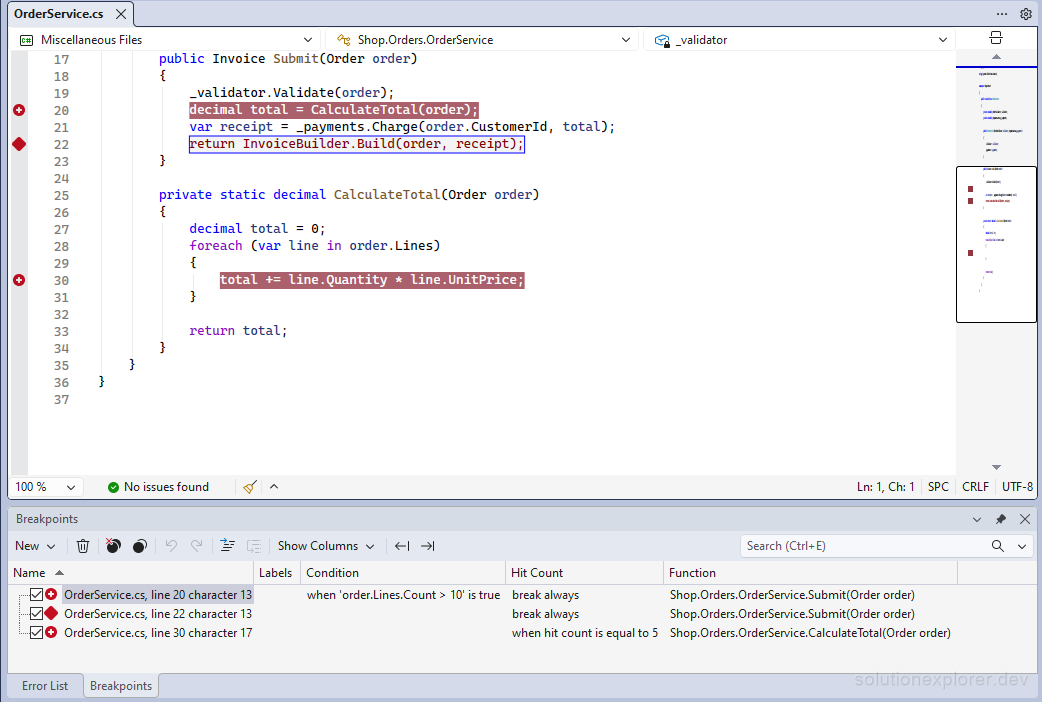
A saved breakpoint is a line breakpoint in a file, stored with every setting a full restore needs:
- the line and the character position on the line
- the enabled or disabled state
- the condition and its type (is true, when changed)
- the hit count target and its type
- the filter (machine, process, or thread)
- the action message of a tracepoint, and whether execution breaks or continues
- the function containing the line
- the text of the line and a fingerprint of the code around it
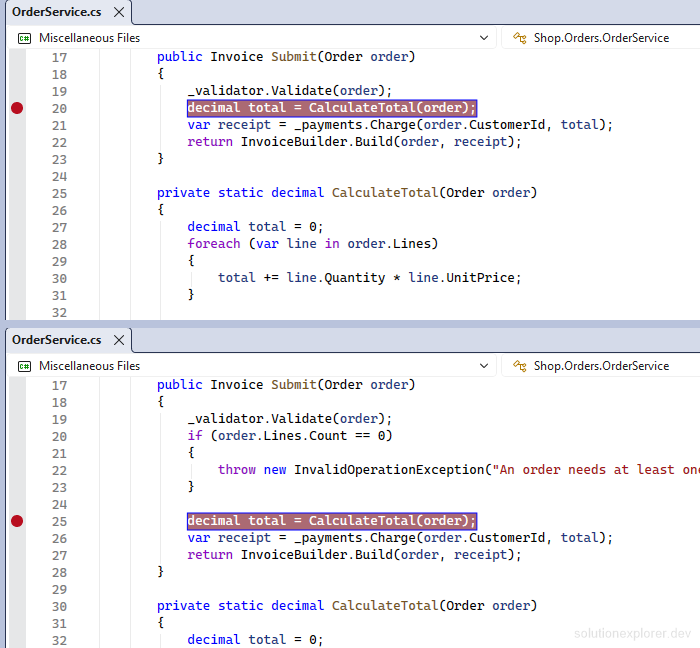
The line text and the fingerprint make line correction possible. When lines are added or removed above a breakpoint, the restore finds the line again instead of placing the breakpoint on the wrong statement.

Save breakpoints together with the open tabs
Simple Tab Saver installs from Extensions > Manage Extensions in Visual Studio, found by its name. Breakpoints Capture is disabled after the installation. Enable it on the General options page:
- Open Tools > Options > Simple Tab Saver > General.
- Check Breakpoints.
- Click OK.
The Breakpoints checkbox switches Save breakpoints in tab layout and Insert saved breakpoints during Restore together. From then on, every Save stores the breakpoints of the saved tabs, and every Restore re-inserts them into the reopened files.
The checkbox leaves Insert saved breakpoints during Autorestore and Insert saved breakpoints during git branch switch at False, so the automatic restores insert no breakpoints until those two options are enabled.

Options for saving and restoring breakpoints
Every option is on Tools > Options > Simple Tab Saver > Advanced, in the Breakpoints Capture section.
- Attempt correction of breakpoint positions during Restore DefaultTrue
Searches for the saved line text when the saved line no longer matches. When disabled, breakpoints are applied at the exact saved line.
- Breakpoint correction review threshold Default75
Minimum confidence score for a relocated breakpoint to be applied automatically. Lower scores go to the review dialog.
- Breakpoint correction skip threshold Default25
Confidence score below which a relocated breakpoint is skipped without review. 0 disables skipping.
- Insert saved breakpoints during Autorestore DefaultFalse
Re-inserts saved breakpoints during Autorestore, without the confirmation before a breakpoint refresh.
- Insert saved breakpoints during git branch switch DefaultFalse
Re-inserts saved breakpoints during the automatic restore on a git branch switch.
- Insert saved breakpoints during Restore DefaultFalse
Re-inserts saved breakpoints into the reopened files. When disabled, existing breakpoints stay and saved ones are ignored.
- Review low-confidence breakpoints during Autorestore DefaultFalse
Sends relocated breakpoints scored below the review threshold to the review dialog during Autorestore. When disabled, every relocated breakpoint is applied.
- Review low-confidence breakpoints during git branch switch DefaultFalse
Sends relocated breakpoints scored below the review threshold to the review dialog during the git branch restore. When disabled, every relocated breakpoint is applied.
- Save breakpoints in tab layout DefaultFalse
Captures the breakpoints of every saved tab. When disabled, breakpoints saved earlier are kept without recapturing.
Confirm before breakpoint refresh in the Confirmation Prompts section asks before Restore replaces the existing breakpoints of a reopened file. It defaults to True and shows only when both the tab layout and the file hold breakpoints.
A lower Breakpoint correction review threshold applies more relocated breakpoints without review. A misplaced breakpoint may end up on a different statement with no prompt pointing at it.
How a breakpoint finds its line after code changes
A breakpoint whose line text is still on the saved line is applied directly. Otherwise, the restore searches the file for the saved line text and picks the closest matching line. It rates that match with a confidence score from 0 to 100. Three things decide the score:
A score at or above the review threshold applies the breakpoint at the new line. A score between the two thresholds sends the breakpoint to the review dialog. A score below the skip threshold drops the breakpoint. A line text found nowhere in the file removes the breakpoint from the tab layout.

The two thresholds apply to Restore, Append, and Apply Breakpoints Snapshot. Autorestore and the git branch restore apply every relocated breakpoint without review by default. Review low-confidence breakpoints during Autorestore and Review low-confidence breakpoints during git branch switch apply the two thresholds to them.
Review breakpoints moved to an uncertain line
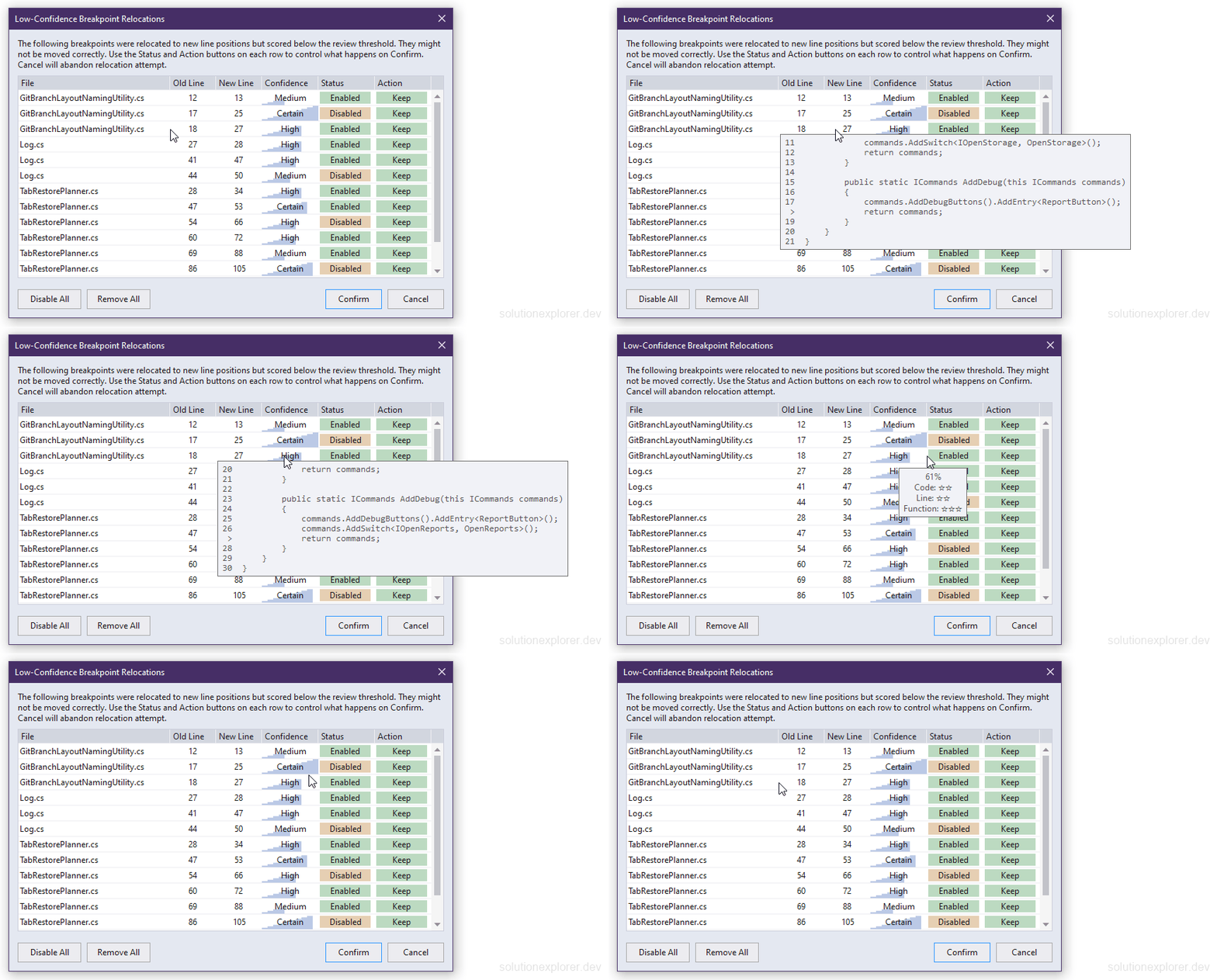
The Low-Confidence Breakpoint Relocations dialog lists every breakpoint scored between the two thresholds before any of them is applied. Each row shows the file, the Old Line, the New Line, and a Confidence label of Certain, High, Medium, or Low.
- Hovering Old Line shows the saved code around the breakpoint, and hovering New Line shows the current code around the proposed line.
- Hovering Confidence shows the percent and a rating of up to three stars for the groups Code, Line, and Function.
- The Status button toggles each breakpoint between Enabled and Disabled, and the Action button toggles between Keep and Remove.
- Two batch buttons set every row at once: Disable All, which turns into Enable All, and Remove All, which turns into Keep All.
- Right-clicking a row copies its file path, its absolute path, or the code shown in either line tooltip.
Confirm applies the decisions. Cancel inserts the listed breakpoints at their saved lines.
Keep a set of breakpoints apart from the tabs
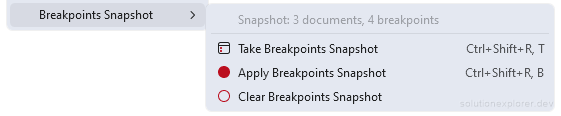
A Breakpoints Snapshot stores breakpoints independently of any tab layout. It suits a debugging session that needs a different set of breakpoints for a while, with the original set brought back afterwards. The commands are in the Breakpoints Snapshot sub-menu of Utilities in the Management menu:

- Take Breakpoints Snapshot ShortcutCtrl+Shift+R T
Saves the breakpoints of the open documents into the snapshot, merged per the Breakpoints Snapshot options.
- Apply Breakpoints Snapshot ShortcutCtrl+Shift+R B
Re-inserts the saved breakpoints into documents that are already open, with line correction. It never opens or closes a document.
- Clear Breakpoints Snapshot ShortcutNone
Deletes every saved entry of the snapshot, after a confirmation by default.
The snapshot is stored as the file __breakpoints_snapshot.json in the .personal subfolder of the tab layout storage folder and appears in no tab layout list.
When Apply Breakpoints Snapshot inserts nothing, open the documents of the snapshot first. Apply never opens a document, and it inserts breakpoints into open documents only.
Options for the separate breakpoint set
Every option is on Tools > Options > Simple Tab Saver > Advanced, in the Breakpoints Snapshot section. A matched document is an open document the snapshot holds breakpoints for.
- Applying Breakpoints Snapshot clears all breakpoints first DefaultFalse
Deletes every breakpoint of the solution before the apply, closed documents included, through the Visual Studio Delete All Breakpoints command and its confirmation. Declining that confirmation cancels the apply.
- Applying Breakpoints Snapshot keeps existing breakpoints in matched documents DefaultFalse
Adds the saved breakpoints beside the existing ones of each matched document, skipping same-line duplicates. When disabled, the existing breakpoints of matched documents are replaced.
- Applying Breakpoints Snapshot only uses current active document DefaultFalse
Applies the snapshot to the active document only.
- Show Breakpoints Snapshot sub-menu in Management menu DefaultFalse
Places the sub-menu directly in the Management menu instead of inside Utilities.
- Take Breakpoints Snapshot on debug session end DefaultFalse
Takes a snapshot silently whenever a debug session ends. It never removes live breakpoints.
- Taking Breakpoints Snapshot always clears previous snapshot DefaultFalse
Clears the snapshot first, so it holds only the current open documents with breakpoints. Takes precedence over every other snapshot option.
- Taking Breakpoints Snapshot only uses current active document DefaultFalse
Takes the snapshot of the active document only.
- Taking Breakpoints Snapshot removes live breakpoints after saving DefaultFalse
Removes the live breakpoints after a manual snapshot, so Take and Apply work as stash and unstash.
- Taking Breakpoints Snapshot removes no longer existing breakpoints DefaultTrue
Removes saved entries of open documents that no longer have breakpoints.
Taking Breakpoints Snapshot always clears previous snapshot drops the saved entries of every document that is closed at the time of the Take.
Remove saved breakpoints from a tab layout
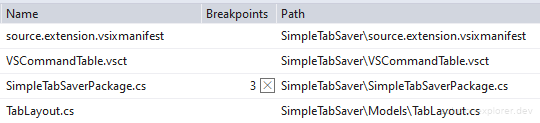
The Edit command in the Management menu shows the breakpoint count of every tab in a saved tab layout, in its Breakpoints column. A button beside each count removes the saved breakpoints of that tab, written when the dialog saves. The git branch guide and the save and restore guide cover the automatic restores that can carry breakpoints.
Stash and unstash breakpoints
A stash workflow keeps a carefully built set of breakpoints aside during an unrelated investigation:
- Enable Taking Breakpoints Snapshot removes live breakpoints after saving.
- Press Ctrl+Shift+R T with every document holding breakpoints open. The snapshot stores the breakpoints of the open documents, and those documents lose them.
- Debug the unrelated problem with temporary breakpoints.
- Delete the temporary breakpoints with Debug > Delete All Breakpoints.
- Press Ctrl+Shift+R B with the original documents open. The stored breakpoints return on the lines line correction finds.
Applying Breakpoints Snapshot clears all breakpoints first folds step 4 into step 5.
Keep Take Breakpoints Snapshot on debug session end disabled for this workflow. An automatic Take at the end of step 3 replaces the stashed entries of the documents holding temporary breakpoints. Under the default options, it also drops the stashed entries of the other open documents.
