Save and restore tabs per git branch in Visual Studio 2022/2026 · Every git branch keeps its own open tabs, swapped on each branch switch

 Simple Tab Saver on the Visual Studio Marketplace
Visual Studio keeps one set of open tabs per solution, so a git branch switch leaves the tabs of the previous branch open.
The guide shows how to keep one set of tabs per git branch with Simple Tab Saver, an extension for Visual Studio 2022 and 2026, the Windows IDE. The extension's Git Integration stores each set as a tab layout. A branch switch saves the open tabs of the outgoing branch and restores the tabs of the incoming branch. The sections start with how the feature works and how to enable it, continue with every option of the Git Integration section, and end with two use cases.
How tabs follow the git branch
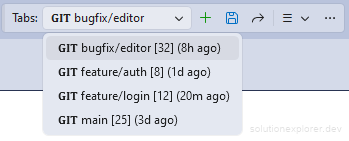
Simple Tab Saver watches the git repository of the open solution and detects every branch switch. The switch can come from the Visual Studio Git menu, the command line, or any other git client. A switch made while Visual Studio runs in the background is detected as well. A git branch tab layout is a tab layout named after its branch and marked with a GIT prefix in the toolbar dropdown.
On a branch switch, the sequence runs in this order:
- The open tabs are saved into the tab layout of the outgoing branch.
- All open tabs are closed, when the close option is enabled.
- The tab layout of the incoming branch is restored, when one exists and holds tabs.
The restore re-creates tab order, pinned tabs, cursor positions, the active tab, tab groups, and floating document windows. A file missing on the incoming branch is skipped without a prompt, unless Perform drift detection when restoring git branch tab layouts is enabled. Closing the solution also saves the tab layout of the current branch, and opening the solution restores it. Linked worktrees created with git worktree add and repositories using the reftable ref storage format (git init --ref-format=reftable) are supported. A repository created or removed while the solution stays open is detected without reopening the solution.

The floating windows guide covers tab groups and floating document windows. The moved and renamed files guide covers the search for missing files, which a manual Restore runs and a git branch restore runs with that option enabled.
Enable tabs per git branch in Visual Studio
Simple Tab Saver installs from Extensions > Manage Extensions in Visual Studio, found by its name. Git Integration is disabled after the installation. Enable it on the General options page:
- Open Tools > Options > Simple Tab Saver > General, or the Options entry of the Management menu on the toolbar.
- Check Git Integration.
- Click OK.

The Git Integration checkbox switches two options of the Advanced page together: Automatically save tab layouts on git branch switch and Automatically restore tab layout on git branch switch. When only one of the two is enabled, the checkbox shows the mixed state. Clicking a mixed checkbox clears both options. Every other setting of the feature is on Tools > Options > Simple Tab Saver > Advanced, in the Git Integration section.
When a branch switch restores nothing, check that the Git Integration checkbox shows a check mark rather than the mixed state.
The incoming branch also needs a git branch tab layout holding tabs, since a branch without one triggers no restore.
Options for saving tabs per git branch
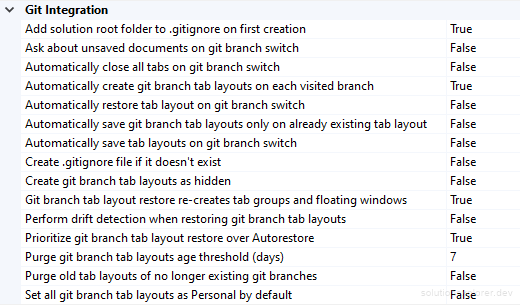
The Git Integration section of the Advanced page holds fifteen options, listed in the alphabetical order of the page.
- Add solution root folder to .gitignore on first creation DefaultTrue
Appends the storage folder to the solution's
.gitignorewhen the storage folder is first created, with separate entries for its.backupsand.personalsubfolders. One-time only, a removed entry is not added again.- Ask about unsaved documents on git branch switch DefaultFalse
Lets Visual Studio ask about documents with unsaved changes when Git Integration closes tabs. Cancelling keeps those documents open.
- Automatically close all tabs on git branch switch DefaultFalse
Closes all open tabs on every branch switch, after the outgoing branch is saved. A branch without a tab layout starts with an empty tab well. Documents with unsaved changes are saved first.
- Automatically create git branch tab layouts on each visited branch DefaultTrue
Creates a git branch tab layout for every visited branch, on solution open and on switching into a branch without one.
- Automatically restore tab layout on git branch switch DefaultFalse
Restores the tab layout named after the incoming branch on every branch switch. A branch without a tab layout triggers no restore.
- Automatically save git branch tab layouts only on already existing tab layout DefaultFalse
Limits the save on a branch switch and on solution close to existing git branch tab layouts. The creation on each visited branch still applies.
- Automatically save tab layouts on git branch switch DefaultFalse
Saves the open tabs under the outgoing branch name on every branch switch and on solution close, creating the git branch tab layout when missing.
- Create .gitignore file if it doesn't exist DefaultFalse
Creates the
.gitignorefile at the solution root when it is missing, so Add solution root folder to .gitignore on first creation always has a file to append to.- Create git branch tab layouts as hidden DefaultFalse
Hides newly created git branch tab layouts in the toolbar dropdown, keeping the dropdown for manually saved tab layouts.
- Git branch tab layout restore re-creates tab groups and floating windows DefaultTrue
Restores tab groups and floating document windows like the manual Restore. When disabled, every tab opens docked into a single group.
- Perform drift detection when restoring git branch tab layouts DefaultFalse
Searches for moved and renamed files before the git branch restore opens any tab, with the prompts and the reconciliation dialog of the manual Restore. When disabled, missing files are skipped without a prompt.
- Prioritize git branch tab layout restore over Autorestore DefaultTrue
On solution open, the git branch restore runs first, and Autorestore runs only when the current branch has no tab layout holding tabs. When disabled, Autorestore wins when it is enabled.
- Purge git branch tab layouts age threshold (days) Default7
Minimum age in days, by last saved time, before an orphaned git branch tab layout is purged. Accepts 0 to 9999.
- Purge old tab layouts of no longer existing git branches DefaultFalse
Deletes orphaned git branch tab layouts on solution load: those whose branch no longer exists locally and whose age exceeds the threshold.
- Set all git branch tab layouts as Personal by default DefaultFalse
Marks every newly created git branch tab layout as Personal, stored in the
.personalsubfolder of the storage folder. Existing tab layouts keep their state.
The automatic close applies only while the automatic save, the automatic restore, or the automatic creation of git branch tab layouts is enabled. It saves documents with unsaved changes before closing them, unless Ask about unsaved documents on git branch switch is enabled. The save and restore guide covers Autosave and Autorestore.
With Automatically close all tabs on git branch switch enabled and Ask about unsaved documents on git branch switch left at False, a branch switch saves every modified document before closing it, without a prompt.
Related options for branch switches
Six more options of the Advanced page change the behavior of git branch tab layouts.
- BackupDelete also removes backup files DefaultFalse
Deletes the backup files of a tab layout together with it, the purge included.
- Breakpoints CaptureInsert saved breakpoints during git branch switch DefaultFalse
Inserts the breakpoints saved in the git branch tab layout during the automatic restore.
- Breakpoints CaptureReview low-confidence breakpoints during git branch switch DefaultFalse
Sends relocated breakpoints scored below the review threshold to the review dialog during the automatic restore. When disabled, every relocated breakpoint is applied.
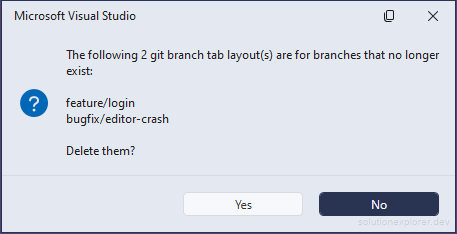
- Confirmation PromptsConfirm before git branch old tab layouts purge DefaultTrue
Lists the orphaned tab layouts and asks for Yes or No before deleting them. When disabled, the purge is silent.
- Confirmation PromptsConfirm before git branch tab layout restore DefaultTrue
Asks for Yes or No before restoring a git branch tab layout on a branch switch.
- Tab LayoutsShow Git Branch glyph DefaultTrue
Shows the
GITprefix on git branch tab layouts in the toolbar dropdown.
The breakpoints guide covers breakpoint capture and line correction.
Keep git branch tabs out of a shared folder
A git branch tab layout is a file in the storage folder, named after its branch: main.json for main, and feature.login.json for feature/login. It is stored beside the manually saved tab layouts. A team that commits the storage folder to share tab layouts therefore commits the git branch tab layouts of every member with it.

Set all git branch tab layouts as Personal by default stores every newly created git branch tab layout in the .personal subfolder of the storage folder. The subfolder also holds the Autosave tab layout and the Breakpoints Snapshot. Add solution root folder to .gitignore on first creation gives the subfolder a .gitignore line of its own:
.tablayouts/
.tablayouts/.backups/
.tablayouts/.personal/
Deleting the first line shares the tab layouts of the storage folder, while the backups and the .personal subfolder stay ignored. The sharing guide covers committing tab layouts to git.
The option applies to new git branch tab layouts only. The Personal checkbox of the Edit dialog in the Management menu moves an existing tab layout into the subfolder or back. Set all tab layouts as Personal by default in the Various section covers every new tab layout, the git branch ones included. A branch switch saves and restores a git branch tab layout in either place.
The three lines are written once, when the storage folder is created. A storage folder that already exists gets no new line, so its
.tablayouts/.personal/line must be added by hand.
Delete the saved tabs of deleted branches
A branch deleted with git branch -d feature-x leaves its git branch tab layout behind. The purge removes these orphaned tab layouts. It runs on solution load and checks the local branches of the repository, so a remote branch alone does not keep a tab layout alive.
The age threshold decides how long an orphaned tab layout survives. The age counts from the last save of the tab layout, not from the deletion of the branch. The default of 7 days therefore spares only a tab layout saved within the last 7 days. A threshold of 0 purges every orphaned tab layout on the next solution load.
The Purge Git Tab Layouts command in the Utilities sub-menu of the Management menu runs the same purge on demand. It ignores the age threshold, works without the purge option, and always asks for confirmation before it deletes. The command is available while Git Integration is enabled and at least one git branch tab layout exists.
When a purge removed the tab layout of a branch deleted by mistake, check the
.backupssubfolder of the storage folder. With automatic backups enabled and Delete also removes backup files at False, the backup files of the purged tab layout stay there.The Tab Layout Backups dialog lists the backups of existing tab layouts, matched by file name. The kept backups show again once a tab layout of that name exists, such as after the branch is created and visited again.
Git-only setup with a hidden toolbar
The configuration below uses Simple Tab Saver for one job: following git branches. The toolbar is hidden, the tab layout files stay outside the repository, and no dialog interrupts a branch switch.

On Tools > Options > Simple Tab Saver > General:
- Tab layout storage ValueExternal
Stores the tab layout files under
%APPDATA%\Microsoft\VisualStudio\Extensions\SimpleTabSaver\TabLayouts\, one subfolder per solution, outside every repository working tree.- Git Integration ValueChecked
Enables the automatic save and the automatic restore on branch switch.
- Autosave ValueUnchecked
Leaves the solution close save to Git Integration, so no separate Autosave tab layout is created.
- Autorestore ValueUnchecked
Leaves the solution open restore to Git Integration.
On Tools > Options > Simple Tab Saver > Advanced:
- Delete also removes backup files ValueTrue
Removes the backups of purged tab layouts, so nothing of a deleted branch accumulates on disk.
- Confirm before git branch old tab layouts purge ValueFalse
Purges without a prompt.
- Confirm before git branch tab layout restore ValueFalse
Restores without a Yes or No prompt.
- Automatically close all tabs on git branch switch ValueTrue
Gives each branch only its own tabs. A new branch starts with an empty tab well.
- Purge git branch tab layouts age threshold (days) Value0
Purges on the first solution load after the branch deletion.
- Purge old tab layouts of no longer existing git branches ValueTrue
Removes tab layouts of deleted branches.
The purge values above delete the tab layout of a branch deleted by mistake on the next solution load, together with its backups. No prompt appears, and no copy stays on disk.
Hide the toolbar last: open Extensions > Simple Tab Saver on the Visual Studio menu bar and click Show on Toolbar to clear its check mark. The menu stays available for manual access, and the same entry shows the toolbar again.

Leave Automatically close all tabs on git branch switch disabled to keep the open tabs when switching into a new branch. A
git checkout -b feature-xthen carries the current tabs into the new branch, and the automatic save stores them as its tab layout.Switching into a branch that already has a tab layout still restores that tab layout.
With external storage, nothing is written into the repository working tree, so the two .gitignore options have no effect. The default Ask about unsaved documents on git branch switch value of False keeps the switch silent by saving modified documents before the close. Each automatic action prints one line in the Visual Studio status bar:
Simple Tab Saver: Saved git branch tab layout for "main" (12 tabs).
Simple Tab Saver: Restored git branch tab layout for "feature-x" (7 tabs).
Simple Tab Saver: Purged 3 orphaned git branch tab layout(s).
Tabs per git branch for selected repositories
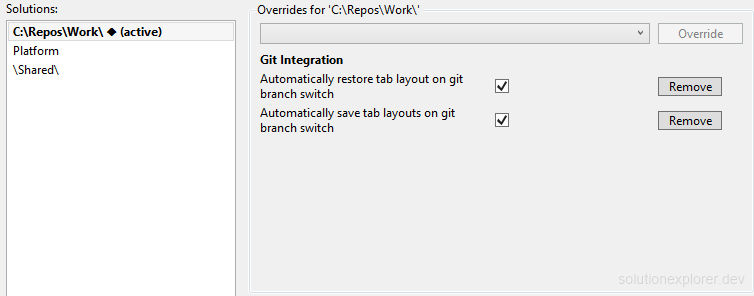
The Solution Specific options page overrides any option for chosen solutions. An entry names a solution, with * wildcards, a parent folder, or both. A parent folder entry such as C:\Repos\ or \GitRepos\ covers every solution inside that folder.
The global options keep Git Integration disabled, and one entry enables it for a group of repositories:
- Open Tools > Options > Simple Tab Saver > Solution Specific.
- Add an entry with the parent folder of the git repositories, for example
C:\Repos\Work\. - Override Automatically save tab layouts on git branch switch and Automatically restore tab layout on git branch switch to True.
- Override the purge options and the close option with the values of the git-only setup, when wanted.
A solution opened from that folder follows its git branches. Every other solution keeps the global behavior, including manual tab layouts on the toolbar. When several entries match one solution, the higher entry in the list wins per option. The per-solution settings guide covers entries and overrides.
Each option of a solution matched by several entries comes from the highest entry overriding it. A broad parent folder entry above a narrower one therefore wins every option both entries override.