Find moved and renamed files on tab restore in Visual Studio 2022/2026 · Saved tabs follow their files after a refactoring moves or renames them

 Simple Tab Saver on the Visual Studio Marketplace
A refactoring that moves or renames files leaves saved tabs pointing at missing paths.
The guide shows how to find moved and renamed files on a tab restore with Simple Tab Saver, an extension for Visual Studio 2022 and 2026, the Windows IDE. The extension saves open tabs as tab layouts. Its Tabs Drift Detection finds the moved and renamed files before a restore opens anything, then offers to update the tab layout. The sections start with the three searches and continue with the prompt for one missing file and the dialog for several. The options that tune the search and a repair of saved tabs without a restore close the guide.
How a moved or renamed file is found
Restore checks every saved path before the first tab opens. A file missing at its saved path goes through three searches:
- Relocation detection searches the solution folder tree for a file with the exact same name, for a file moved to another folder.
- Rename detection searches the original folder for a file with the same extension and a similar name, for a file renamed in place.
- Moved and renamed detection searches the solution folder tree for a file with the same extension and a similar name, for a file both moved and renamed. It runs only when the first two searches found nothing.
The last two searches score the two names without extension from 0 to 100, by the number of character edits between them. A candidate is offered when its score reaches Renamed file match percentage, 75 by default. Renaming OrderService.cs to OrderServices.cs scores 92, while renaming it to Orders.cs scores 50 and is not offered. Moved and renamed detection offers the five closest candidates at most.

Each missing file ends up as one of four types. Moved has at least one relocation candidate, Renamed has rename candidates, and Moved and Renamed has candidates of the third search only. Not Found has no candidate.
A file moved to another folder under a name scoring below the percentage matches none of the three searches. It ends up as Not Found.
Enable the search for moved and renamed files
Simple Tab Saver installs from Extensions > Manage Extensions in Visual Studio, found by its name. All three searches are enabled after the installation. The Drift Detection checkbox on Tools > Options > Simple Tab Saver > General switches Enable relocation detection, Enable rename detection, and Enable moved and renamed detection together. When only some of the three are enabled, the checkbox shows a square, and one click resolves them.
The three options gate the search during Restore only. The Drift Detection button of the Edit dialog always runs all three searches against the edited tab layout, so a tab layout can be repaired without restoring it. A git branch restore skips a missing file without a prompt, unless Perform drift detection when restoring git branch tab layouts is enabled. The git branch guide covers that option.

The prompt for one missing file
A restore with one missing file of each type resolves each file with its own prompt:
- A file with one candidate gets a Yes or No prompt offering the new location.
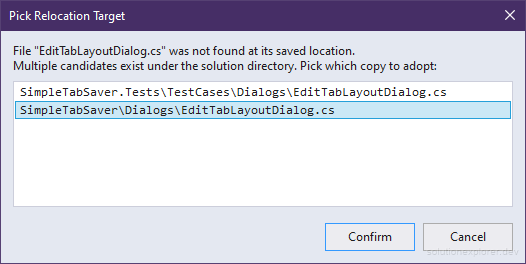
- A file with several candidates opens the Pick Relocation Target dialog listing every candidate, with Confirm adopting the selected one. A candidate found by name similarity shows its similarity percent before the path.
- A not-found file gets a prompt before the first tab opens. It lists the file and offers to remove it from the tab layout.
An adopted path is written into the tab layout immediately, so the next restore opens the file at its new location without any prompt.

The dialog for several missing files
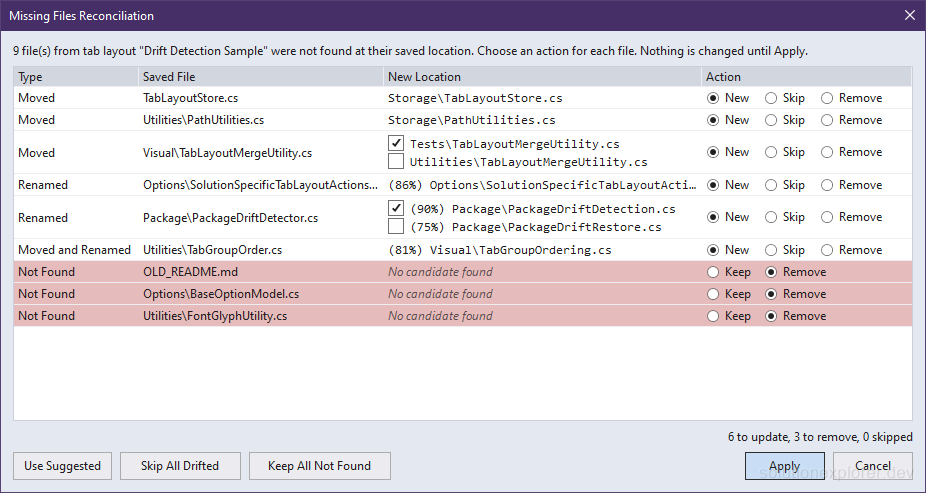
When more than one missing file shares a type, every decision of the restore moves into the Missing Files Reconciliation dialog, and no single-file prompt appears. Always use Missing Files Reconciliation dialog shows the dialog even for one missing file.
The dialog lists one row per missing file, Moved rows first, then Renamed, Moved and Renamed, and Not Found:
New adopts the checked candidate, Skip and Keep leave the saved path unchanged, and Remove deletes the tab from the tab layout. The suggested actions are New with the first candidate and Remove for every not-found file. Apply without any change therefore adopts every proposal and removes every file no search found.
Remove deletes the tab from the tab layout. A file missing only for now, on another git branch or on a disconnected drive, does not come back into the tab layout when it reappears. Set such a row to Keep before Apply.
Actions, batch buttons, and conflicts
Clicking an unchecked candidate selects it and switches the row to New. Clicking the checked candidate switches the row to Skip. A row set to Remove is tinted as a missing file.
The batch buttons under the grid act on several rows at once:
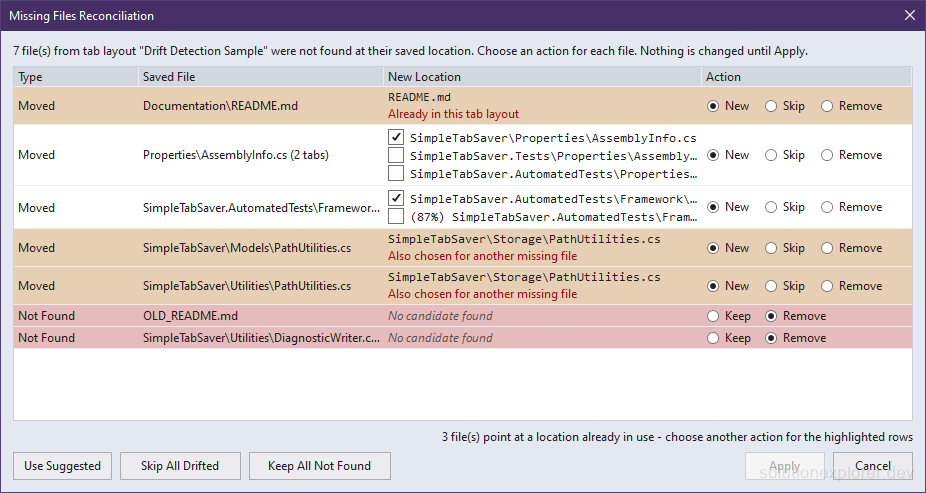
A conflict arises when two rows adopt the same candidate, or when a row adopts a file already present in the tab layout. Either adoption would store one file twice. Conflicting rows take the warning tint and a conflict line, the summary line counts them, and Apply stays disabled until every conflict is resolved.

When Apply stays disabled, look for rows in the warning tint. Each conflict clears once one of its rows takes another candidate, Skip, or Remove.
The Type, Saved File, and New Location headers sort ascending, descending, and back to the opening order. Right-clicking a row copies its saved path or its candidate paths, in stored or absolute form. Cancel restores the tab layout with every entry left untouched.
Options for the missing file search
Every option is on Tools > Options > Simple Tab Saver > Advanced, in the Tabs Drift Detection section.
- Always use Missing Files Reconciliation dialog DefaultFalse
Shows the dialog for every missing file, even a single one.
- Enable moved and renamed detection DefaultTrue
Searches the solution tree for a similarly named file with the same extension during Restore, when the other two searches found nothing.
- Enable relocation detection DefaultTrue
Searches the solution tree for a missing file by its exact name during Restore.
- Enable rename detection DefaultTrue
Searches the original folder for a similarly named file with the same extension during Restore.
- Excluded directories for missing-file search Default
.git,.svn,.vs,bin,obj,lib,packages,node_modules,exclude,ignore,publish Folder names skipped by the relocation search and the moved and renamed search. Supports
Name*,*Name, and*Name*wildcards.- Renamed file match percentage Default75
Minimum similarity for a rename candidate and a moved and renamed candidate. Accepts 50 to 99.
Build output folders hold copies of source files, so excluding them keeps a relocation search from proposing a copy in bin. The list is fully editable, and removing an entry includes that folder in the next search.
A file moved into a folder whose name is on the list, such as
publish, is found by neither solution-wide search and ends up as Not Found.
Large solutions and the search wait dialog
Every search runs before the first tab opens, over one listing of the solution folders built for that restore. An ordinary solution finishes the search without any visible delay. A solution large enough to keep the search running for about a second shows a wait dialog reading "Searching for moved and renamed files..." until the search ends. Adding large generated folders to Excluded directories for missing-file search shortens the search.

Repair saved tabs without restoring them
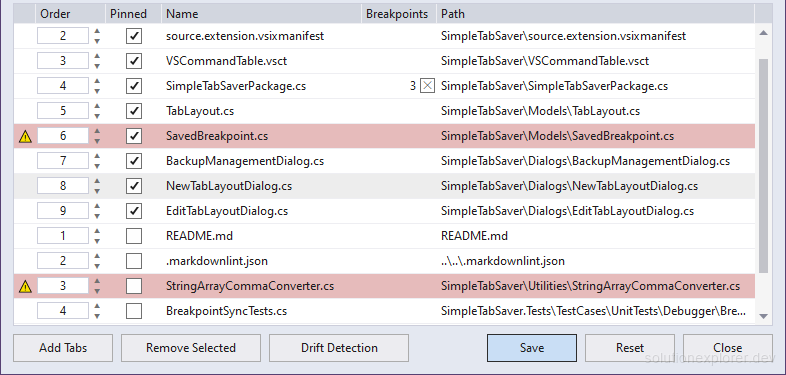
The Edit command in the Management menu marks every tab whose file is missing with a warning glyph. Its Drift Detection button runs the same searches and the same reconciliation dialog against the edited tab layout. Its single-file prompts offer to update the tab, and none of them offers to remove a not-found file. The adopted paths and removed tabs are written when the Edit dialog saves, and no tab opens.