Different tab settings per solution in Visual Studio 2022/2026 · Overrides by solution name or folder, fixed tab layouts on a button or a chord

 Simple Tab Saver on the Visual Studio Marketplace
The same options do not fit every solution: one solution follows git branches, another shares its tabs with a team, a third opens with no restore.
The guide shows how to give each solution its own tab settings with Simple Tab Saver, an extension for Visual Studio 2022 and 2026, the Windows IDE. The extension's Solution Specific options page applies different settings to chosen solutions, matched by name or parent folder. Each entry can also define up to five Tab Layout Actions: one-click commands that save, restore, or append a fixed tab layout. The sections start with entries and overrides, continue with Tab Layout Actions and their toolbar buttons and keyboard chords, and end with two sets of use cases.
Match solutions by name or parent folder
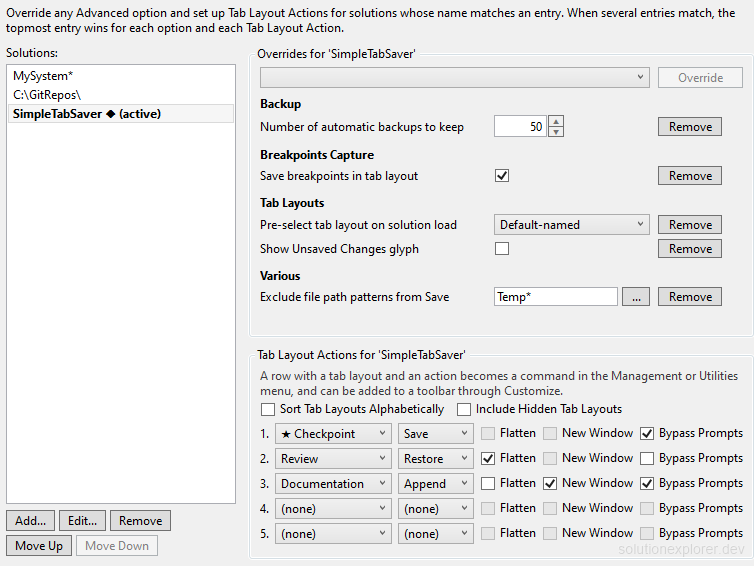
Simple Tab Saver installs from Extensions > Manage Extensions in Visual Studio, found by its name. The Solution Specific page is at Tools > Options > Simple Tab Saver > Solution Specific. Every entry matches a set of solutions and carries its own overridden options. While a matching solution is open, its overrides take priority over the global options of the Advanced page.
The Add... button opens the Add Solution Specific Entry dialog with two boxes. At least one of them is required, and an entry with both matches a solution satisfying both.

\\ for a network share, a partial path starts with \ and matches that folder anywhere in the solution path. The value ends with \, and each * matches within one folder name. Environment variables such as %OneDrive% are expanded.C:\Repos\, \\server\share\, \GitRepos\, \Client*\, %OneDrive%\Repos\* matches any text anywhere in the name.MyCompany.*, *.Tests, My*SystemMove Up and Move Down order the entries. When several entries match one solution, the higher entry in the list wins per option. An entry matching the open solution carries an (active) suffix in the list.
When an override has no effect, look for the (active) suffix in the Solutions list. An entry without it fails on its folder, on its name, or on both.
Override an option for one solution
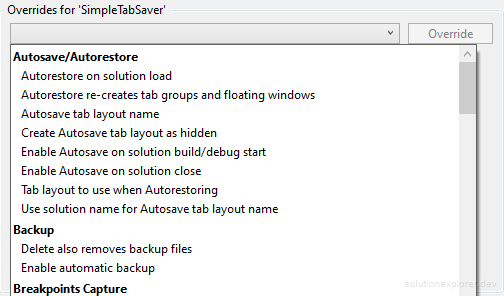
An override replaces one option of the Advanced page for the solutions of an entry:
- Select an entry in the Solutions list.
- Pick an option in the option dropdown above the Overrides list.
- Click Override.
- Set the value in the new row of the list.
Remove beside an overridden option stops overriding it. Any option of the Advanced page can be overridden, from storage location to git integration.
While overrides or Tab Layout Actions are active, the Options entry of the Management menu carries a diamond mark. The General page names the active entries and the number of overridden options, since its switches edit the global values. Each Solution Specific entry is a row of its own in Export Settings... and Import Settings..., included or excluded on its own. An import adds and replaces entries and keeps the ones its file lacks, unless their removal is included.
A General page switch flipped while an override is active changes the global value. Every other solution follows the change, while the open solution keeps its overridden value.
One-click save and restore of a fixed tab set
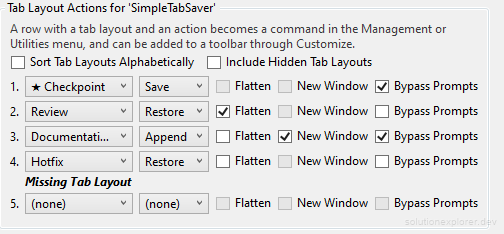
A Tab Layout Action pairs a tab layout of the solution with an action, and becomes a command of its own. Each Solution Specific entry defines up to five of them in its Tab Layout Actions group, one row each. A tab layout can be picked only on an entry matching the open solution.

- First picker ValuesAny tab layout of the open solution
The tab layout the command acts on.
- Second picker ValuesSave, Restore, Append
What the command does with the tab layout.
- Flatten ValuesChecked or not
Restore and Append open everything into one tab group, without floating windows, split views, or duplicated tabs.
- New Window ValuesChecked or not
Append opens every tab into one new floating window.
- Bypass Prompts ValuesChecked or not
Runs the action without confirmation prompts, even when they are enabled.
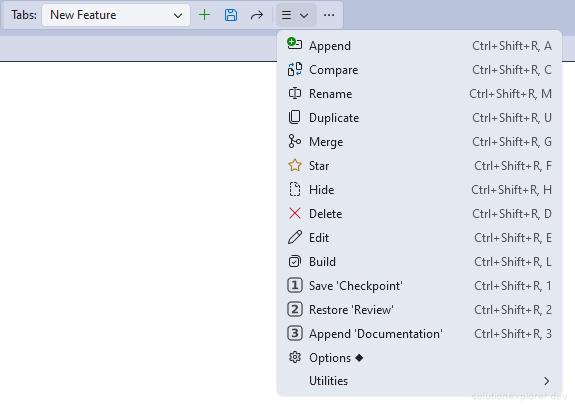
A configured action appears in the Management menu and in Extensions > Simple Tab Saver, named after its action and tab layout, such as Restore 'Code Review'. Running it selects its tab layout, runs the action, and selects the previous tab layout again. Renaming a tab layout updates its actions. An action whose tab layout was deleted is hidden and marked Missing Tab Layout on the options page.
A Save action with Bypass Prompts checked replaces the saved tabs of its tab layout on one chord, without the confirmation a manual Save shows.
Two options in the Tab Layout Actions section of the Advanced page shape the commands:
- Keep selected tab layout DefaultTrue
Selects the previously selected tab layout again after an action. When disabled, the tab layout of the action stays selected.
- Show Tab Layout Action commands DefaultManagement Menu
Management Menu lists each command in the Management menu, Utilities Sub-Menu groups them in a Tab Layout Actions sub-menu, and Only Customize leaves them out of every menu.
Toolbar buttons and keyboard chords for the actions
The commands Tab Layout Action 1 to Tab Layout Action 5 place the actions on any toolbar as numbered buttons:
- Open Tools > Customize, then the Commands tab.
- Select Toolbar and choose Simple Tab Saver or any other toolbar.
- Click Add Command... and choose the Extensions category.
- Add Tab Layout Action 1 and the other numbered commands.
Each button shows only while its action is configured for the open solution, and its tooltip names the action and the tab layout. Every other Simple Tab Saver command can be added to a toolbar the same way.

Each action also runs on a default chord, Ctrl+Shift+R followed by 1 to 5. The chords run the actions of the open solution, so Ctrl+Shift+R 1 restores a different tab layout in each solution. They can be rebound on Tools > Options > Environment > Keyboard.

Per-solution settings for three scenarios
Each of the three Solution Specific entries carries its overrides and the behavior they produce.
- Parent folder
C:\Repos\Work\OverridesAutomatically save tab layouts on git branch switch and Automatically restore tab layout on git branch switch set to True Work repositories follow their git branches, every other solution keeps manual tab layouts.
- Solution name
PlatformOverridesAutorestore on solution load set to True One large solution reopens its tabs automatically.
- Parent folder
\Shared\OverridesTab layouts file storage set to At Solution Root Team repositories keep their tab layouts in the repository, other solutions use external storage.
The git branch guide, the save and restore guide, and the sharing guide cover the overridden features.
One-click actions for three workflows
A Solution Specific entry holds up to five Tab Layout Actions. Each one pairs an existing tab layout with Save, Restore, or Append and runs on its chord or its numbered toolbar button. Three actions fill the first three rows of the Tab Layout Actions group of one entry:
- Tab Layout Action 1Save 'Checkpoint' ShortcutCtrl+Shift+R 1
Saves the open tabs into the
Checkpointtab layout with Bypass Prompts checked. One chord stores the current tabs without a confirmation before a risky change, and a later Restore ofCheckpointbrings them back.- Tab Layout Action 2Restore 'Review' ShortcutCtrl+Shift+R 2
Restores the
Reviewtab layout with Flatten checked. Every tab opens in the main tab group, without floating windows or split views, which suits a single laptop screen.- Tab Layout Action 3Append 'Documentation' ShortcutCtrl+Shift+R 3
Appends the
Documentationtab layout with New Window checked. The documentation files open together in one new floating window beside the code, and closing that window puts them away again.
The chords are the defaults and can be rebound on Tools > Options > Environment > Keyboard. The Tab Layout Action 1 to Tab Layout Action 3 buttons run the same actions from any toolbar.