Restore floating windows and tab groups in Visual Studio 2022/2026 · Window arrangements across several monitors, rebuilt the way they were saved

 Simple Tab Saver on the Visual Studio Marketplace
An arrangement of tab groups and floating document windows across several monitors takes many drags to build, and closing its tabs discards it.
The guide shows how to save and restore tab groups and floating windows with Simple Tab Saver, an extension for Visual Studio 2022 and 2026, the Windows IDE. The extension saves the open tabs as a tab layout that records the position of every tab. Restore rebuilds tab groups, floating document windows on any monitor, tab split views, and duplicated tabs. The sections start with what is saved, continue with the options, the flat restore, and Append, and end with one use case: a multi-monitor setup.
What is saved of the window arrangement
Save records the arrangement of the document well and of every floating document window:
Restore re-creates the tab groups and the floating windows and opens every tab in its saved place. A floating window saved on a disconnected monitor is moved onto a connected monitor, so no window opens out of reach.

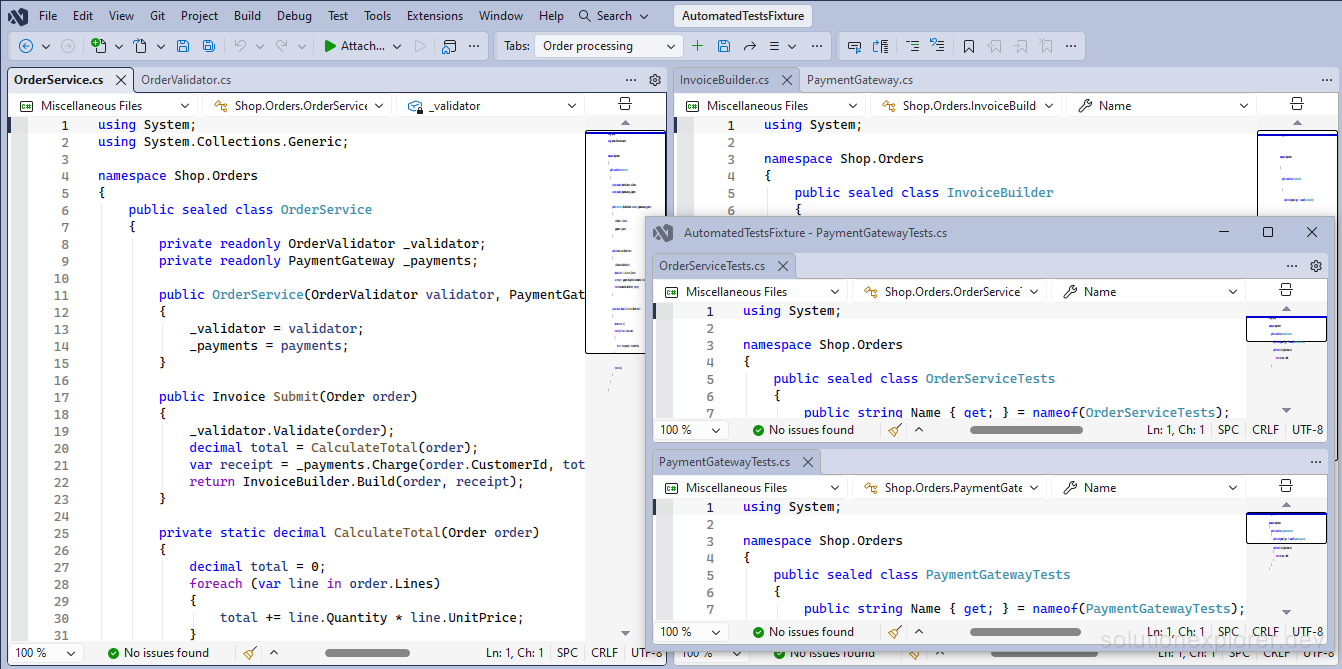
Options for tab groups and floating windows
Simple Tab Saver installs from Extensions > Manage Extensions in Visual Studio, found by its name. Every option is on Tools > Options > Simple Tab Saver > Advanced, in the Various section.
- Expand everything on tab layout restore DefaultFalse
Expands every collapsed outlining region, such as
#regionblocks, in each restored file.- Include duplicated tabs in saved tab layouts DefaultTrue
Captures every instance of a document opened as several tabs. When disabled, one tab per document is saved and restored.
- Include tab split views in saved tab layouts DefaultTrue
Captures which tabs have a split view and restores the split.
- Include tool tabs in saved tab layouts DefaultFalse
Captures tool window tabs placed in the document well. A tool tab saved inside a floating window is restored into that window where Visual Studio allows it, otherwise into the main window.
- Restore scroll position in documents DefaultTrue
Scrolls each document to its saved scroll position instead of centering on the cursor.
- Save and restore floating document windows DefaultTrue
Captures floating document windows with their tabs and geometry and re-creates them. When disabled, floating tabs are saved as docked tabs.
- Save and restore tab groups arrangement DefaultTrue
Captures tab group membership and re-creates the arrangement. When disabled, all tabs open in a single group.
The automatic restores follow the same options, except Expand everything on tab layout restore, which they skip. Autorestore re-creates tab groups and floating windows and Git branch tab layout restore re-creates tab groups and floating windows both default to True. Disabling either one opens that restore flat into a single group.
Restore every tab into one group
The Flatten Tab Layout checkbox on Tools > Options > Simple Tab Saver > General switches four options in reverse. Checking it disables tab groups, floating windows, split views, and duplicated tabs together. Unchecking it enables all four again. When the four options are mixed, the checkbox shows a square, and one click resolves them.

An arrangement saved earlier stays in the JSON file until the next Save of that tab layout. Restore ignores it and opens every tab into one group, and unchecking the switch brings the arrangement back.
A Save made while Flatten Tab Layout is checked writes the tab layout without tab groups, floating windows, split views, and duplicated tabs. The arrangement stored earlier in that tab layout is gone, and unchecking the switch does not bring it back.
Autosave and the git branch save write the same way.

Add saved tabs to the open windows
Append opens the tabs of a tab layout beside the tabs already open, without closing anything. Four options decide where appended tabs go.
- Append always creates new floating windows DefaultFalse
Creates a new floating window for each floating window of the appended tab layout. When disabled, Append merges into an open floating window, matching the placement memory of Visual Studio.
- Append always creates new tab groups DefaultFalse
Creates a new tab group for each non-first tab group of the appended tab layout. When disabled, Append uses an open tab group at the same position.
- Append closes already opened tabs before appending them DefaultFalse
Closes the open tabs of documents in the appended tab layout first, so they reopen at their appended positions. Unsaved changes are saved first.
- Append into focused floating window DefaultFalse
Opens the appended tabs into the focused floating window when the appended tab layout has no floating tabs.
A Tab Layout Action with the New Window modifier appends every tab of its tab layout into one new floating window. The per-solution settings guide covers Tab Layout Actions.
With Append closes already opened tabs before appending them enabled, Append saves the modified documents it closes without a prompt.
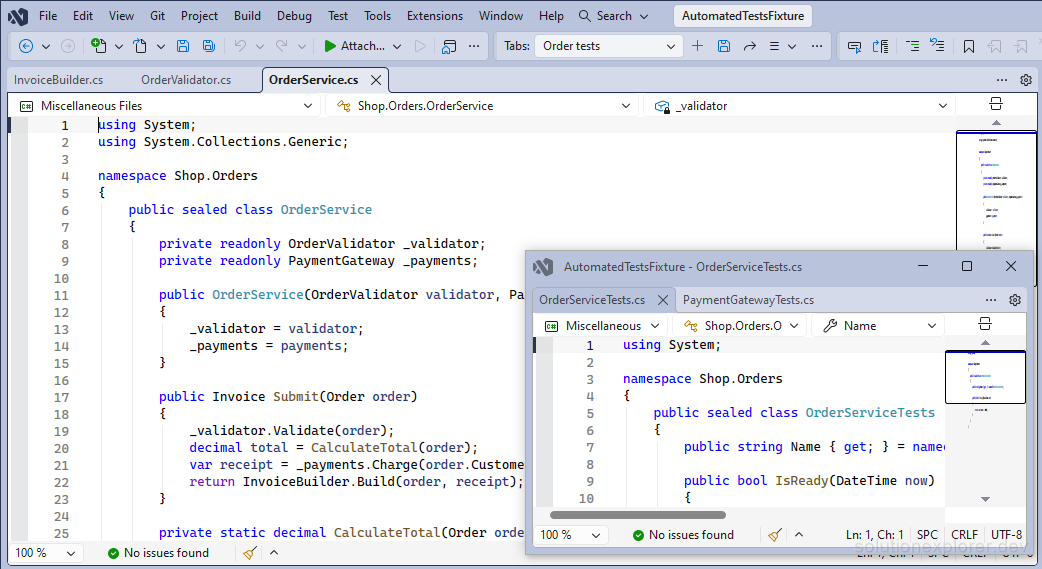
Mark saved sets that hold floating windows
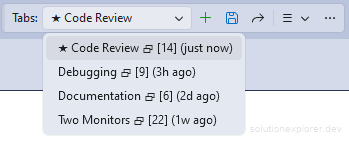
Show Floating Windows glyph in the Tab Layouts section appends a glyph to every tab layout with saved floating windows in the toolbar dropdown. It defaults to False and shows only while Save and restore floating document windows is enabled.
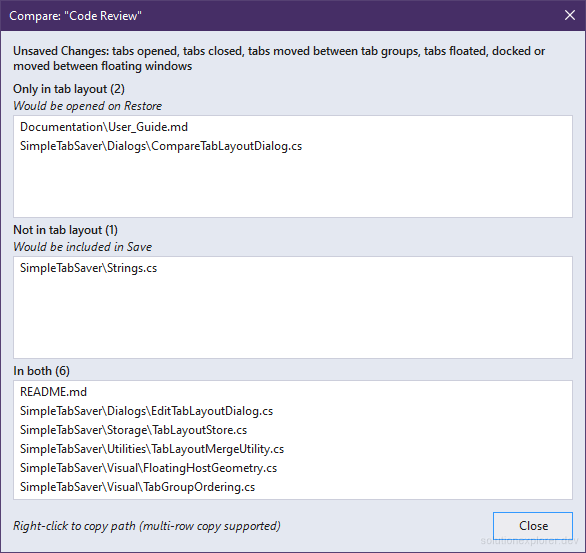
The Compare command in the Management menu lists the differences between the selected tab layout and the open tabs. For the tab layout saved or restored last, it shows an Unsaved Changes line naming the kinds of change. The kinds include tabs reordered, moved between tab groups, floated or docked, and split views toggled. The Edit command moves tabs between tab groups and floating windows inside a saved tab layout, without opening the files.

Restore windows on a multi-monitor setup
A two-monitor workstation keeps the code under edit on the main monitor and reference files on the second one:
- Open the reference files and drag their tabs out of the main window onto the second monitor.
- Split the floating window into two tab groups with Window > New Vertical Document Group.
- Save the tabs as a tab layout with the Save button on the Simple Tab Saver toolbar.
- Restore that tab layout in any later session.
Restore re-creates the floating window at its saved position and size, with both tab groups and every tab in place. A laptop without the second monitor opens the floating window on its own screen.
A Save on the laptop stores the floating window at its laptop position and replaces the two-monitor arrangement. A separate tab layout per desk keeps both arrangements.
