Save and restore open tabs in Visual Studio 2022/2026 · Several named sets of tabs per solution, restored on a click or on solution open

 Simple Tab Saver on the Visual Studio Marketplace
Visual Studio remembers one set of open documents per solution, the documents open at the last close, and reopens it when the Reopen documents on solution load option is enabled. It keeps no second set: the tabs opened for another task in the same solution replace the earlier ones, and the earlier set is gone.
The guide shows how to keep several sets of tabs per solution with Simple Tab Saver, an extension for Visual Studio 2022 and 2026, the Windows IDE. The extension saves each set as a named tab layout and restores it on demand or when the solution opens. The sections start with saving and restoring by hand, continue with Autosave and Autorestore and every option of the two, and end with one use case.
What a saved set of tabs holds
A tab layout is a named set of open document tabs, stored as one plain JSON file. A solution holds any number of tab layouts, one per task, feature, or review.
A restore brings back:
- tab order and pinned tabs
- the active tab
- cursor line and column, text selection, and scroll position
- tab groups with their orientation
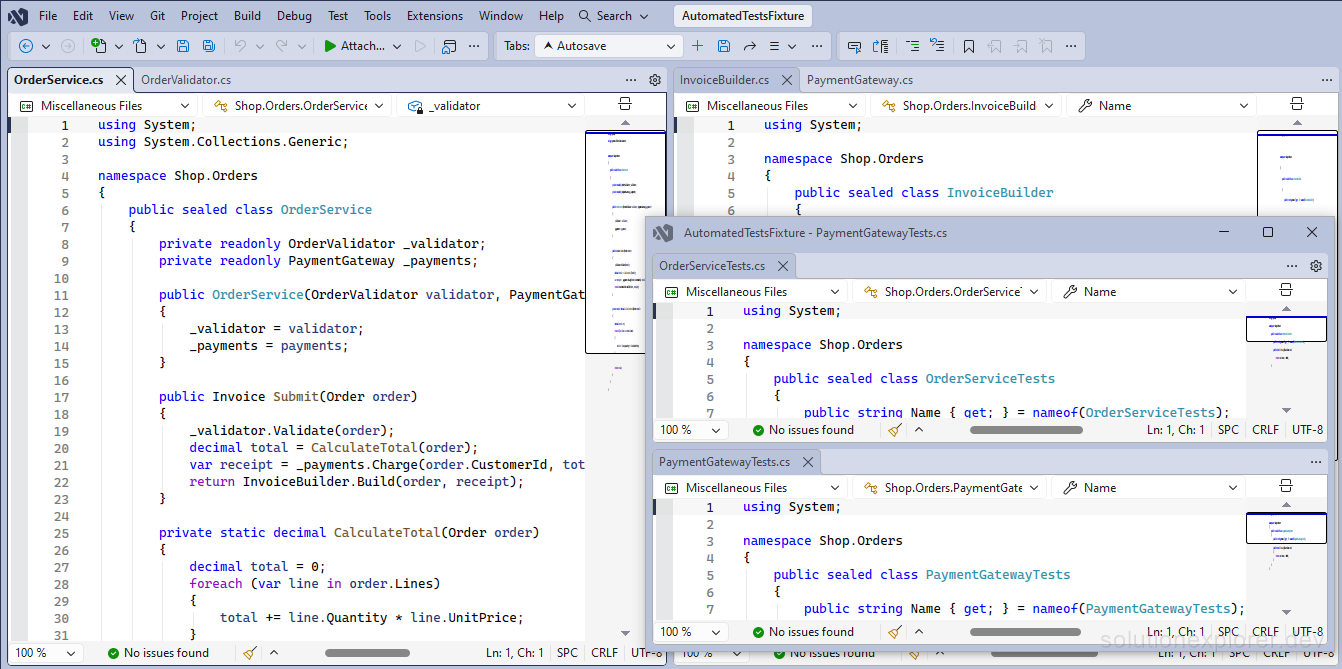
- floating document windows with their tabs, position, and size
- duplicated tabs and tab split views
The floating windows guide covers tab groups, floating document windows, and split views.

Save the open tabs under a name
Simple Tab Saver installs from Extensions > Manage Extensions in Visual Studio, found by its name. It adds a toolbar with a dropdown of the tab layouts saved for the open solution and four buttons: New, Save, Restore, and Management. Every command is also on the Extensions > Simple Tab Saver menu.
New opens the Create New Tab Layout dialog, which asks for a name. Confirm creates the tab layout, records the open tabs into it at once, and selects it in the dropdown. A name already in use asks before it overwrites that tab layout. Save records the open tabs into the tab layout selected in the dropdown, replacing what it held. One tab layout per task keeps the files of each task together: the tabs of a bug fix, of a feature, of a code review.
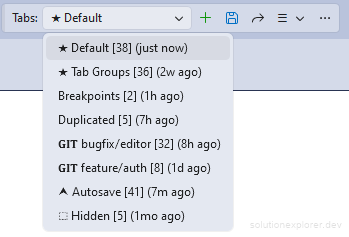
When a Save overwrote a tab layout by mistake, open the Tab Layout Backups dialog in the Utilities sub-menu. It lists the earlier states of the selected tab layout, as long as automatic backups were enabled at the time of the Save.
Restore a saved set of tabs
Restore reopens the tabs of the tab layout selected in the dropdown, in their saved order, and rebuilds the tab groups and floating windows. Append in the Management menu opens the same tabs beside the open ones and closes nothing.
Compare in the Management menu lists the differences between the selected tab layout and the open tabs. It shows what a Save or a Restore would change before either runs.
Restore closes the tabs that are open before it reopens the saved ones. Append is the command that keeps them.
Save and restore tabs from the keyboard
The main commands carry a default chord: Ctrl+Shift+R followed by one key.
- New ShortcutCtrl+Shift+R N
Asks for a name and creates a tab layout from the open tabs.
- Save ShortcutCtrl+Shift+R S
Records the open tabs into the selected tab layout.
- Restore ShortcutCtrl+Shift+R R
Closes the open tabs and reopens the tabs of the selected tab layout.
- Append ShortcutCtrl+Shift+R A
Opens the tabs of the selected tab layout beside the open tabs.
- Quick Switch ShortcutCtrl+Shift+R Q
Opens a dialog that filters the tab layouts by typed name. Enter selects one, Ctrl+Enter selects and restores it, and Ctrl+Alt+Enter selects and appends it.
Every chord can be rebound on Tools > Options > Environment > Keyboard.
Reopen the last tabs when a solution opens
Two features make the save and the restore automatic. Autosave writes the open tabs into a dedicated tab layout, named Autosave by default, when the solution closes. Its file is stored in the .personal subfolder of the storage folder. Autorestore reopens a chosen tab layout when a solution or folder opens. Both are disabled after the installation. Enable them on the General options page:
- Open Tools > Options > Simple Tab Saver > General, or the Options entry of the Management menu on the toolbar.
- Check Autosave.
- Check Autorestore.
- Click OK.
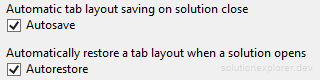
The Autosave checkbox switches Enable Autosave on solution close on the Advanced page. The Autorestore checkbox switches Autorestore on solution load. With the default Tab layout to use when Autorestoring value of Autosaved, the pair restores exactly what was open when the solution last closed.

Autorestore saves and closes the open documents first, so the final window state matches the tab layout. It suppresses every confirmation prompt. Reloading a solution after it changed outside Visual Studio runs no Autorestore, so the tabs Visual Studio keeps through the reload stay untouched.
When the solution opens with no tabs restored, check the toolbar dropdown with Show Hidden enabled, since Create Autosave tab layout as hidden hides the Autosave tab layout by default.
With Git Integration enabled, the git branch restore of a branch holding saved tabs runs first, unless Prioritize git branch tab layout restore over Autorestore is False.
Options for automatic save and restore
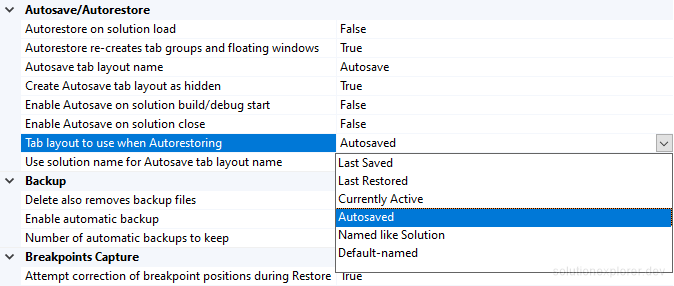
Every option is on Tools > Options > Simple Tab Saver > Advanced, in the Autosave/Autorestore section.
- Autorestore on solution load DefaultFalse
Restores a tab layout when a solution or folder opens, picked by Tab layout to use when Autorestoring.
- Autorestore re-creates tab groups and floating windows DefaultTrue
Re-creates tab groups and floating document windows like the manual Restore. When disabled, every tab opens docked into a single group.
- Autosave tab layout name DefaultAutosave
Name of the tab layout written by Autosave, used as the display name and the file name.
- Create Autosave tab layout as hidden DefaultTrue
Hides a newly created Autosave tab layout in the toolbar dropdown. An existing one can be unhidden.
- Enable Autosave on solution build/debug start DefaultFalse
Saves the open tabs to the same Autosave tab layout whenever a build or a debugging session starts. Never creates a backup, so frequent builds consume no backup slots.
- Enable Autosave on solution close DefaultFalse
Saves the open tabs to the Autosave tab layout every time the solution closes.
- Tab layout to use when Autorestoring DefaultAutosaved
Selects the tab layout that Autorestore reopens, one of six values.
- Use solution name for Autosave tab layout name DefaultFalse
Names the Autosave tab layout after the solution file instead of the configured name. The existing Autosave tab layout is renamed on toggle.
Enable Autosave on solution build/debug start and the save on solution close write one Autosave tab layout, so the next Autorestore reopens the tabs of whichever came last.
Choose which tabs reopen on solution open
Tab layout to use when Autorestoring decides between the Autosave tab layout and the manually saved tab layouts.
Default by default.The values Last Saved, Last Restored, and Currently Active ignore the Autosave and git branch tab layouts. Autosaved fits a workflow that always continues where the last session ended. Currently Active fits a workflow with several named tab layouts per task, since the solution reopens the task worked on last.
Select a saved set without opening its tabs
Pre-select tab layout on solution load in the Tab Layouts section selects a tab layout in the toolbar dropdown after a solution opens. It changes the selection only and restores nothing, so the toolbar buttons act on that tab layout immediately. Its values are None, Last Saved, Last Restored, Currently Active, Most Saved, Most Restored, Autosaved, Named like Solution, and Default-named.
The default None selects whatever Autorestore restored. Any other value overrides the autorestored selection, while a restored git branch tab layout stays selected. A hidden tab layout is pre-selected only while Show Hidden is enabled. Pre-selection without Autorestore suits a workflow where the solution opens empty and one restore click brings back the chosen tabs.

Restore breakpoints together with the tabs
Breakpoints can be saved in the tab layout. Save breakpoints in tab layout captures breakpoints on every save, Autosave included. Insert saved breakpoints during Autorestore in the Breakpoints Capture section re-inserts them during Autorestore, without a confirmation prompt. Both options default to False. The breakpoints guide covers capture, line correction, and the review dialog.

Automatic restore on solutions with git branches
With Git Integration enabled, opening a solution also triggers the restore of the tab layout of the current git branch. Prioritize git branch tab layout restore over Autorestore in the Git Integration section decides which restore runs. Its default value of True runs the git branch restore first. Autorestore then runs only when the current branch has no tab layout holding tabs. When disabled, Autorestore wins when it is enabled, otherwise the git branch restore runs.
A solution that follows git branches needs neither Autosave nor Autorestore. The git branch save on solution close and the git branch restore on solution open cover the same ground. The git branch guide describes that setup.
Automatic restore for selected solutions only
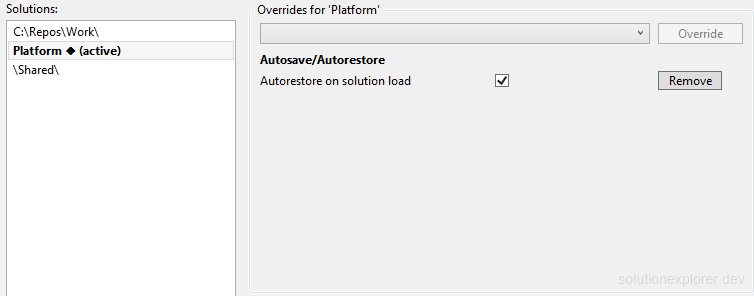
The Solution Specific options page overrides any option for chosen solutions, matched by solution name, by parent folder, or both. An entry overriding Autorestore on solution load to True enables Autorestore for one large solution while every other solution opens with no restore. The per-solution settings guide covers entries and overrides.