Share open tabs between machines and teams in Visual Studio 2022/2026 · The open tabs as portable JSON files, shared through git or a cloud folder

 Simple Tab Saver on the Visual Studio Marketplace
The hidden .vs folder of a solution holds the open tabs data per user and is not meant for source control.
The guide shows how to share open tabs between machines and team members with Simple Tab Saver, an extension for Visual Studio 2022 and 2026, the Windows IDE. The extension saves the open tabs as tab layouts: plain JSON files with paths relative to the solution. The sections start with the file format and continue with the storage locations and moving the settings. Two use cases close the guide: sharing through git and syncing through a cloud folder.
The JSON file of a saved set of tabs
A tab layout file stores every document path relative to the solution folder. A clone of the repository in another folder, on another drive, or on another machine opens the same files. The file name is the tab layout name with a .json extension, each space stored as an underscore.
A trimmed example of a tab layout file:
{
  "ExtensionName": "Simple Tab Saver",
  "SchemaVersion": "1.0",
  "Name": "Order processing",
  "SolutionName": "Shop",
  "Tabs": [
    {
      "Order": 0,
      "FilePath": "src\\Orders\\OrderService.cs",
      "IsPinned": false,
      "LineNumber": 42,
      "ColumnNumber": 9
    },
    {
      "Order": 1,
      "FilePath": "src\\Orders\\OrderValidator.cs",
      "IsPinned": false
    }
  ]
}
A document outside the solution folder is stored with a ..\ relative path. A document on another drive is stored with its absolute path and the IsAbsoluteFilePath flag. Such a tab opens only on a machine with the same file at the same place. Disabling Include external files in saved tab layout in the Various section of the Advanced page skips those tabs on Save. Shared tab layouts then carry no machine-specific paths.
Exclude file path patterns from Save skips tabs by path pattern, matched against the stored relative path. A pattern such as *.Designer.cs keeps generated files out of every saved tab layout.
Where the saved tabs are stored
Simple Tab Saver installs from Extensions > Manage Extensions in Visual Studio, found by its name. The Tab layout storage radios on Tools > Options > Simple Tab Saver > General select one of two locations:

.tablayouts folder in the solution folder.%APPDATA%\Microsoft\VisualStudio\Extensions\SimpleTabSaver\TabLayouts\.The storage options are on Tools > Options > Simple Tab Saver > Advanced, in the Storage section:
- Create solution root folder with Hidden attribute DefaultFalse
Marks the solution root folder as hidden when it is first created.
- Tab layouts external directory path Default
%APPDATA%\Microsoft\VisualStudio\Extensions\SimpleTabSaver\TabLayouts\ Base folder for external storage. Environment variables such as
%OneDrive%are expanded. Changing the value moves the whole base folder, unless the new folder already exists.- Tab layouts file storage DefaultAt Solution Root
The location the General page radios switch.
- Tab layouts solution root folder name Default
.tablayouts Folder for solution root storage. Subfolders such as
.vs\TabLayoutsand parent folders such as..\TabLayoutsare allowed. Changing the name renames the existing folder.
The Solution storage in '.vs' checkbox on the General page places the solution root folder inside the hidden .vs folder of the solution. The .vs folder is ignored by git in the standard Visual Studio .gitignore, but a cleanup that deletes .vs deletes the tab layouts too.
Deleting the
.vsfolder, a common cleanup step for a broken solution cache, deletes every tab layout stored inside it.
The Open Solution Storage and Open External Storage commands in the Utilities sub-menu of the Management menu open the storage folders in File Explorer.
A solution with solution root storage holds the tab layout files and two subfolders beside its own files:
- C:\Repos\Shop
- Shop.sln
- .gitignore
- src
- .tablayouts
- Order_processing.json
- Code_review.json
- Release_checklist.json
- .backups
- .personal
Keep personal tabs out of the shared folder
Two subfolders of the storage folder hold the files that stay with one developer:
- .tablayouts
- Order_processing.json
- Code_review.json
- .backups
- Order_processing.20261005101500.bak.json
- .personal
- Autosave.json
- __breakpoints_snapshot.json
The .backups subfolder holds the automatic backups. The .personal subfolder holds the Autosave tab layout, the Breakpoints Snapshot, and every tab layout marked Personal. The Personal checkbox of the Edit dialog in the Management menu marks a tab layout and moves its file into the subfolder, and clearing it moves the file back.
Three options of the Advanced page set the mark on new tab layouts and show it in the toolbar dropdown:
- Git IntegrationSet all git branch tab layouts as Personal by default DefaultFalse
Marks every newly created git branch tab layout as Personal.
- Tab LayoutsShow Personal/General glyph DefaultFalse
Shows a glyph on the Personal tab layouts in the toolbar dropdown. With every tab layout Personal by default, the glyph marks the non-Personal ones.
- VariousSet all tab layouts as Personal by default DefaultFalse
Marks every newly created tab layout as Personal. Existing tab layouts keep their state.
A different storage location per solution
The Solution Specific options page overrides any option for chosen solutions. An entry overriding Tab layouts file storage keeps the tab layouts of one team repository at the solution root for sharing, while every other solution uses external storage. The per-solution settings guide covers entries and overrides.
Move the settings to another machine
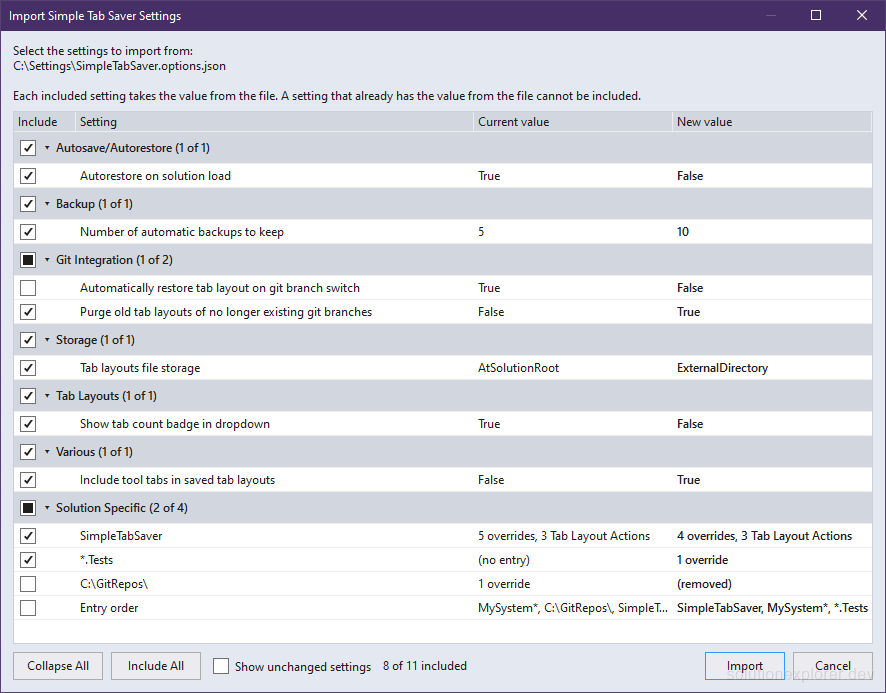
The Export Settings... command in the Utilities sub-menu lists every Simple Tab Saver option by section and writes the included ones to a JSON file. Import Settings... reads such a file on another machine and lists the options whose value would change, the current value beside the new one. Its Import button applies the included ones. An identical file changes nothing.

Solution Specific entries are merged on import: an entry of the file is added, or replaces its counterpart of the same name and parent folder, and every other one stays. Reset Settings to Defaults lists the options that differ from their defaults, with none included, and resets the ones included by hand. Each Solution Specific entry is a row of its own in all three commands.
An import with every row included replaces the Solution Specific entries of the target machine with the entries of the file. A Solution Specific entry the file lacks is listed with
(removed)as its new value and starts excluded, and including that row deletes it.Reset Settings to Defaults removes only the entries included by hand.
Edit the saved tabs file by hand
A tab layout file can be edited in any text editor while the solution is closed. The Edit command in the Management menu covers the common changes inside Visual Studio. It reorders tabs, toggles pinned state, removes tabs, adds solution files, and moves tabs between tab groups and floating windows. A file carrying a different schema version is refused with an error message.
A hand edit to the Autosave tab layout or to a git branch tab layout made while the solution is open is overwritten by the next automatic save of that tab layout.
Share open tabs with a team through git
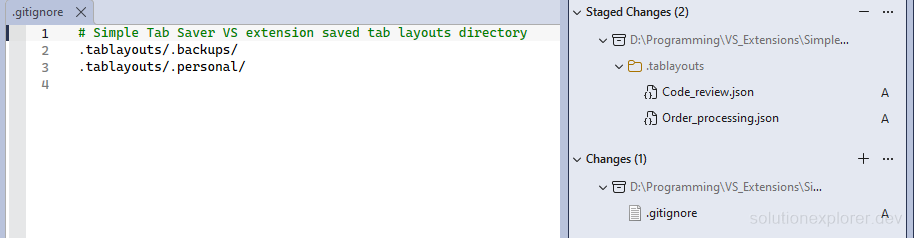
Solution root storage puts the tab layouts next to the code, ready to commit. By default, Add solution root folder to .gitignore on first creation in the Git Integration section writes three lines into .gitignore when the storage folder is first created:
.tablayouts/
.tablayouts/.backups/
.tablayouts/.personal/
The first line keeps every tab layout out of the repository. A team sharing tab layouts deletes that line, and the other two keep the backups and the .personal subfolder ignored. A deleted line is not added again. The lines go into an existing .gitignore only, unless Create .gitignore file if it doesn't exist is enabled.

A setup for shared tab layouts:
- Set Tab layout storage to Solution on the General page.
- Save the shared tab layouts, such as one per feature area of the code.
- Delete the
.tablayouts/line from.gitignore. - Commit the
.tablayoutsfolder and the.gitignorefile.
The Autosave tab layout, the Breakpoints Snapshot, and the tab layouts marked Personal are stored in the .personal subfolder and stay out of the commit. A storage folder that already exists gets no new .gitignore line, so its .tablayouts/.personal/ line must be added by hand. A team member opens a shared tab layout from the toolbar dropdown and restores it like any other one.
A git branch tab layout is stored under its branch name, such as
main.jsonorfeature.login.jsonforfeature/login, so no.gitignorepattern tells it from a shared tab layout. Set all git branch tab layouts as Personal by default stores new git branch tab layouts in the.personalsubfolder.
The git branch guide covers Git Integration and its options.
Sync open tabs between personal machines
External storage with a cloud-synced base folder shares personal tab layouts between a desktop and a laptop without touching the repository:
- Set Tab layout storage to External on the General page of both machines.
- Set Tab layouts external directory path to a synced folder such as
%OneDrive%\TabLayouts\on both machines. - Open the same solution on both machines.
Both machines resolve the same subfolder, since the subfolder is named after the solution. The relative paths open the right files even when the repository is in a different folder on each machine. A tab layout saved on one machine appears in the toolbar dropdown of the other once the cloud client has synced the file.
Saving one tab layout on both machines before the cloud client has synced leaves two versions of its file. The cloud client then keeps one of them or creates a conflict copy, and the other save is lost.
The synced base folder then holds one subfolder per solution:
- %OneDrive%\TabLayouts
- Shop
- Order_processing.json
- Code_review.json
- Platform
- Default.json
- Billing
- Default.json
- Shop
