Simple Tab Saver: User Guide

This is user manual describing all the features, for in-depth usage examples see how-to guides.
Overview
Simple Tab Saver is a Visual Studio extension that saves and restores open document tabs, with multiple saved sets per solution. It supports Visual Studio 2022 and Visual Studio 2026. The extension is free, with no trial period, no licensing cost, and no subscription.
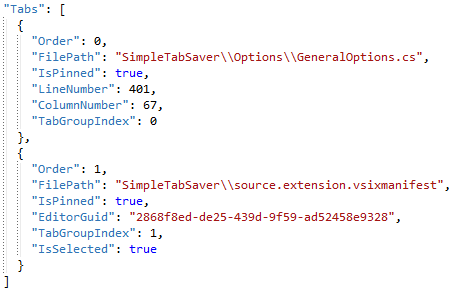
Each saved set is called a tab layout and is stored as a plain JSON file with paths relative to the solution, so a tab layout is readable, editable by hand, portable across machines and Visual Studio versions, and shareable with others.
The whole extension is driven from a compact toolbar with a small screen footprint. Everything beyond saving and restoring is opt-in.

Saving and Restoring
A Save records the currently open document tabs so a later Restore brings them back the way they were:
- tab order and pinned tabs
- the active tab
- cursor line and column, text selection, and scroll position
- tab groups (splits of the editor area) with their orientation and the selected tab in each group
- floating document windows, including their tabs, tab groups, position, size, and maximized or minimized state
- duplicated tabs (the same document opened as multiple tabs), each with its own position, pinned state, and cursor
- tab split views (a tab split into two panes), with the position in each pane
- tool window tabs placed inside the document well, like Test Explorer docked as a tabbed document (optional, restored back into the document well at their saved positions)
- breakpoints per file (optional)
Restore reopens the tabs in the same visual order and rebuilds the tab groups and floating windows in place. Append opens a tab layout's tabs alongside the ones already open, without closing anything.
Restore closes the tabs that are open before it reopens the saved ones. Append is the command that keeps them.
Toolbar and Menu
The extension adds a Simple Tab Saver toolbar with a tab layouts dropdown and New, Save, Restore, and Management buttons. The dropdown lists the tab layouts saved for the current solution and shows, per entry, an optional tab count, a last-saved age, and marker glyphs for starred, hidden, git, and autosave tab layouts. The dropdown sorts by a configurable key and direction, with starred tab layouts always clustered at the top and hidden ones at the bottom.
Every command is also available from the Extensions > Simple Tab Saver menu on the Visual Studio menu bar, which additionally shows a Selected label with the currently selected tab layout so the selection stays visible without the toolbar. A Show on Toolbar entry toggles the toolbar itself. A Quick Switch command opens a keyboard-first picker to filter, switch, and optionally restore or append a tab layout, with a Detailed View checkbox that swaps the list for a sortable table showing each tab layout's metadata.
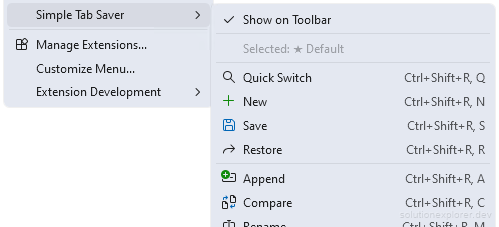
A Help sub-menu at the bottom opens the extension readme as a read-only document tab in Markdown Preview mode and an About window that shows the extension icon, version and release date, a Project website link, and a Rate and Review command, each opening its page in the default browser after a confirmation.
When the toolbar is missing, open Extensions > Simple Tab Saver on the menu bar and click Show on Toolbar.
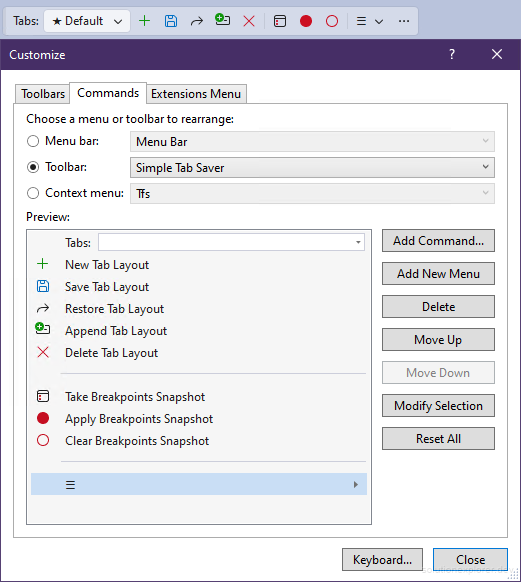
Each command has a default Ctrl+Shift+R chord shortcut. All shortcuts can be rebound through Tools > Options > Environment > Keyboard, and every command can be placed individually on any toolbar through the Visual Studio Customize dialog: the commands can be accessed under Add Command... in the Extensions category, and the width of the tab layouts dropdown can be adjusted with the Modify Selection button.
Keyboard Shortcuts
Every command carries a default chord: Ctrl+Shift+R followed by one key.
Every chord can be rebound on Tools > Options > Environment > Keyboard. The Tab Layout Action chords run the actions of the open solution, so Ctrl+Shift+R 1 uses a different tab layout in each solution.
When a chord does nothing, look on Tools > Options > Environment > Keyboard for another command bound to Ctrl+Shift+R alone. Such a binding, often from another extension, takes the key before the chord can start.
Quick Switch from the Keyboard
Ctrl+Shift+R Q opens the Quick Switch Tab Layout dialog. Typing filters the tab layouts by name, and the arrow keys move the selection.
The Detailed View checkbox replaces the list with a sortable table with details for each tab layout, including its last saved time, tab count, and starred and hidden state.
Storage
Tab layout JSON files are stored per solution. By default they sit in a .tablayouts folder inside the solution directory. Alternatively they can be stored in a shared external directory that keeps one subfolder per solution, and individual solutions can override the location on the Solution Specific options page. Tab layouts marked Personal, the Autosave tab layout, and the Breakpoints Snapshot are kept in a .personal subfolder of the storage directory, so that subfolder can be excluded from version control while the other tab layouts are shared. The solution-root folder name is configurable and can be created with the Hidden attribute. The extension can also add the storage folder to the solution's .gitignore. The Utilities sub-menu opens the storage directories.

Because a tab layout stores solution-relative paths, the whole folder can be moved with the solution, copied to another machine, or committed and shared with others.
With the default options the
.tablayoutsfolder is added to the solution's.gitignorewhen it is first created, so tab layouts stay out of commits until that line is removed. The.backupsand.personalsubfolders have lines of their own and stay ignored.
Managing Tab Layouts
The Management menu operates on the tab layout selected in the dropdown.
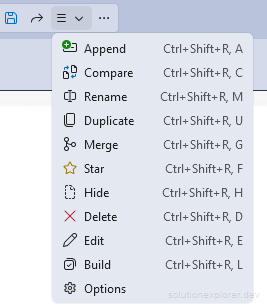
Available options:
- Rename, Duplicate, and Delete.
- Merge combines the tabs of one or more other tab layouts into the selected one, tool tabs included when tool tab saving is enabled.
- Append restores the selected tab layout without closing already open document tabs.
- Hide keeps a tab layout out of the dropdown, shown again only when Show Hidden is enabled. Star pins a tab layout to the top of the dropdown.
- Personal (a checkbox in the Edit dialog) moves a tab layout into the
.personalsubfolder. All new tab layouts (or only git tab layouts) can be marked as Personal by default via an option. - Compare shows a read-only diff between the selected tab layout and the currently open tabs, to quickly see what a Save or Restore would change. With tool tabs enabled, tool tabs are listed by their caption at the top of each section.
- Edit opens a dialog to inspect and lightly modify a tab layout: reorder tabs within their pinned or unpinned group, toggle pinned status, remove tabs, strip breakpoints, arrange tab groups and floating windows, and resolve tabs whose files have moved using Drift Detection. Tool tabs saved in the tab layout appear as rows alongside the documents (shown by their caption) and can be reordered, pinned, moved, and removed the same way. Every ordering, pin, window, and group control also works on a multi-row selection: the pinned checkbox sets all selected rows at once, a typed order number moves the selected rows together as one block, the arrow keys and spinner step the whole selection, and a typed window or group number moves every selected row there. The New button in the dialog creates a new empty tab layout, and the Add Tabs button adds solution files as new tabs through a file picker mirroring Solution Explorer. Files already in the tab layout are skipped, and the added rows stay light green until saved. Edits are held in memory and written only when Save is clicked.
- Build creates a new tab layout directly from solution files, without needing a selected tab layout first. The Solution Explorer file picker opens with a Tab Layout Name box on top, a Build button that creates the tab layout from the selected solution files, and a Build and Edit button that also opens it in the Edit dialog.
In both the Compare and Edit dialogs, document paths can be copied to the clipboard by right-clicking the selected rows.
Delete leaves the backup copies of the tab layout in the
.backupsfolder, unless the Delete also removes backup files option is enabled.
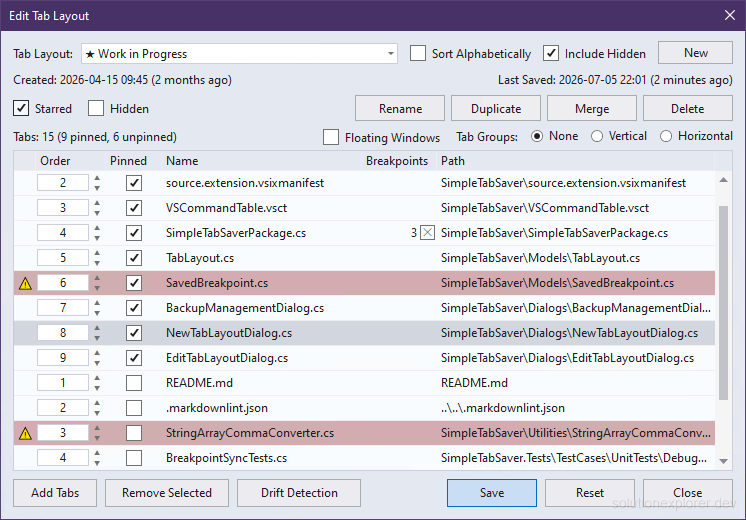
The Edit and Tab Layout Backups dialogs each carry their own Include Hidden and Sort Alphabetically toggles next to their dropdown, remembered separately for each dialog. Sort Alphabetically lists the tab layouts flat A to Z, ignoring the configured order and the starred and hidden grouping.
Extra Features
Every feature below is opt-in and covers a specific use case.
Autosave and Autorestore
Autosave saves the current tabs to a dedicated tab layout on solution close, or on build or debug start. Autorestore reopens a chosen tab layout on solution open. The autosave tab layout name is configurable and can be set to match the solution name. A pre-select option can select a tab layout in the dropdown on solution open without restoring it.
Git Integration
Git integration automatically saves and restores a tab layout per git branch when the branch changes, and can create a tab layout for each visited branch so it appears in the dropdown immediately. Git tab layouts show a GIT prefix. It can close all tabs on a branch switch, so a branch without a restored tab layout starts with an empty tab well. The branch restore can run Tabs Drift Detection before it opens the tabs (optional). An optional purge removes tab layouts for branches that no longer exist locally and are older than a configurable threshold. A repository created or removed while the solution stays open is noticed, so branch watching starts and stops without reopening the solution. Repositories using git's reftable ref storage format are supported.

With the close on a branch switch enabled, documents with unsaved changes are saved before they are closed, without a prompt, unless Ask about unsaved documents on git branch switch is enabled.
Tabs Drift Detection
When a restored tab layout points to a file that is no longer at its saved path, the extension looks for it in three ways:
- Relocation: an exact file name match (extension included), anywhere else in the solution tree, except in configurable excluded directories.
- Rename: a same-extension file in the original directory with a similar base name, the similarity threshold being configurable.
- Moved and renamed: a same-extension file with a similar base name anywhere else in the solution tree, searched only when the other two found nothing.
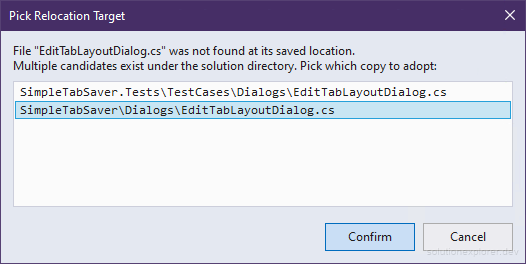
When a candidate is found, a dialog offers to adopt the new location, and a picker dialog appears when several files match.
The moved and renamed search offers its five closest matches at most, so a common file name pattern never floods the picker.
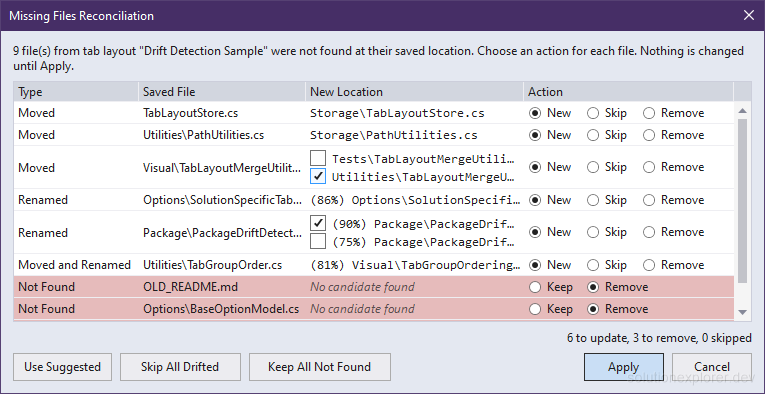
When a restore or the Drift Detection button in the Edit dialog finds more than one moved, renamed, or missing file, a single Missing Files Reconciliation dialog replaces the per-file prompts. It lists every file with its candidate locations and one-click New, Skip, Keep, and Remove actions, to use the new path, keep the entry, or remove it from the tab layout. It suggests Remove for a file no search found. Checkboxes appear when a file has several candidates. The Always use Missing Files Reconciliation dialog option forces this dialog for a single file too.
Automatic Backup and Recovery
Automatic Backup keeps timestamped copies of a tab layout before each user-initiated save, including the Save button, a Create New overwrite, an autosave on close, a Merge into the same tab layout, and a git branch switch. The copies are stored in a .backups subfolder of the storage directory, and the number kept per tab layout is configurable.
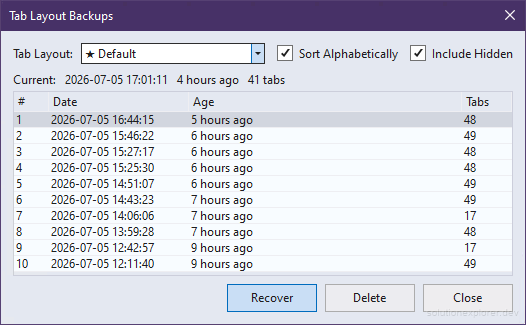
Recovery runs from the Tab Layout Backups dialog in the Utilities sub-menu, which lists every backup of the selected tab layout and overwrites the current file from the chosen copy.
When a Save overwrote a tab layout by mistake, its previous state is in the Tab Layout Backups dialog, as long as automatic backups were enabled at the time of the Save.
Breakpoints Capture
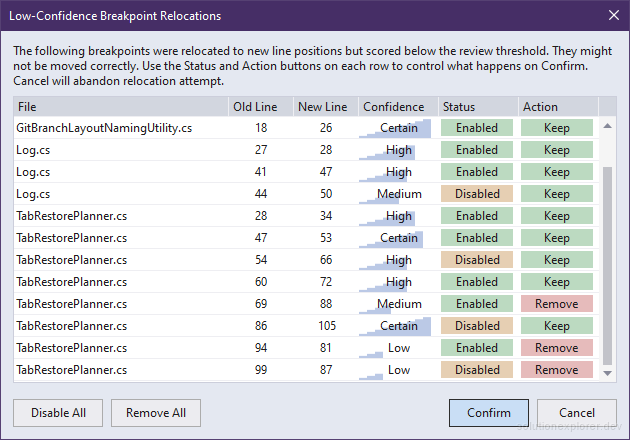
Breakpoints Capture stores breakpoints of the open documents with the tab layout and re-inserts them on restore. A line-text anchor self-corrects the saved line number when the file was edited between save and restore, with optional manual review. Autorestore and the git branch restore apply every correction without review, unless Review low-confidence breakpoints during Autorestore or Review low-confidence breakpoints during git branch switch is enabled. Location, conditions, hit count filter, trace message, and enabled state are all stored. With the capture disabled, breakpoints are ignored on both save and restore, and the existing ones are left untouched.
Breakpoints Snapshot
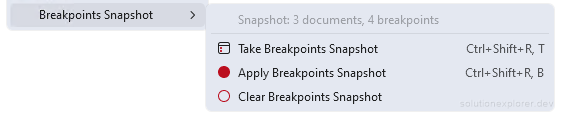
Breakpoints Snapshot saves and applies a set of breakpoints independently of any tab layout, without opening or closing documents. It is made for stashing a configured set of breakpoints, and its sub-menu under Utilities carries three commands:
- Take Breakpoints Snapshot saves the breakpoints of the open documents, merging them into the previously saved ones.
- Apply Breakpoints Snapshot re-inserts breakpoints from a snapshot into documents that are already open, using the same self-correction and review flow as a restore.
- Clear Breakpoints Snapshot removes every saved entry.
Its own options category configures the merge behavior of Take, a stash workflow that removes the live breakpoints after a manual Take, a silent automatic Take when a debug session ends, an additive or active-document-scoped Apply, an Apply that first deletes every breakpoint of the solution, and the sub-menu placement.
When Apply Breakpoints Snapshot inserts nothing, open the documents of the snapshot first. Apply never opens a document.
Settings Transfer
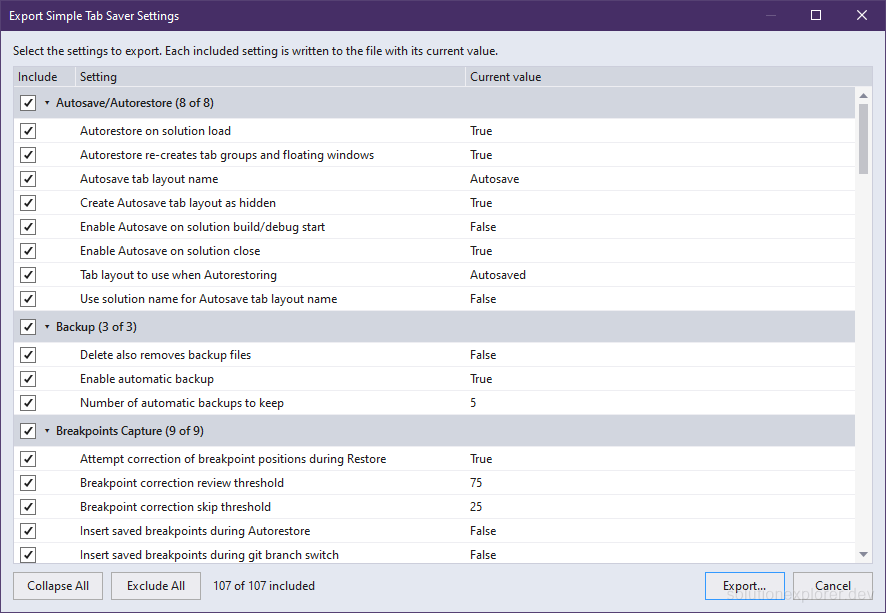
The Utilities sub-menu exports the extension settings to a JSON file, imports them from one, and resets them to their defaults. Each of the three commands first shows the settings by section with their values, and every setting, every Solution Specific entry, or a whole section can be included or excluded.
Export Settings... lists every setting with its current value and writes the included ones to the file.
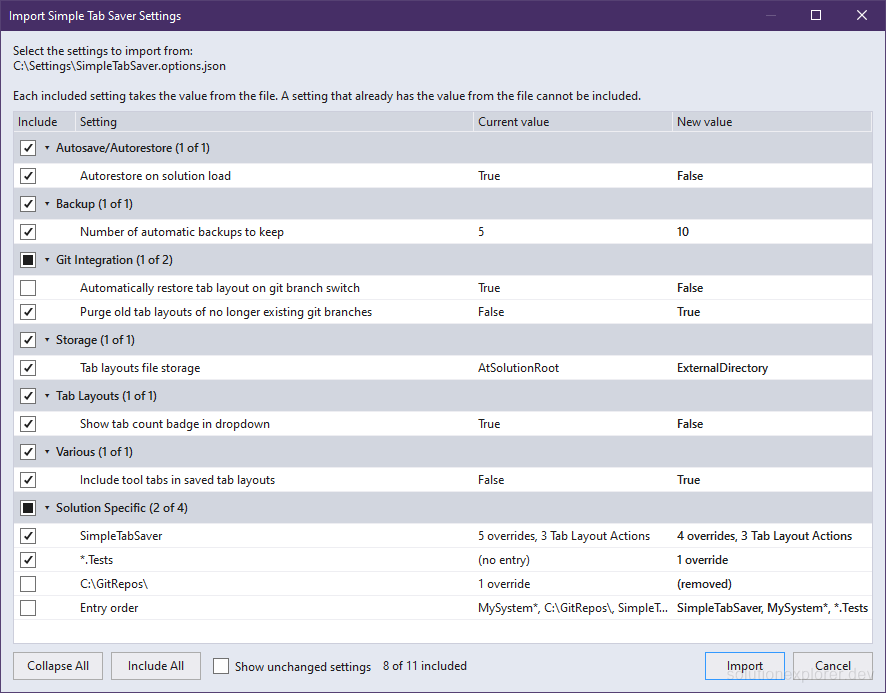
Import Settings... lists the settings whose value would change, the current value beside the new one, and applies the included ones. Solution Specific entries are merged: the entries of the file are added or replace their counterparts, and an entry the file lacks is kept unless its (removed) row is included.
Reset Settings to Defaults lists the settings away from their default and starts with nothing included.
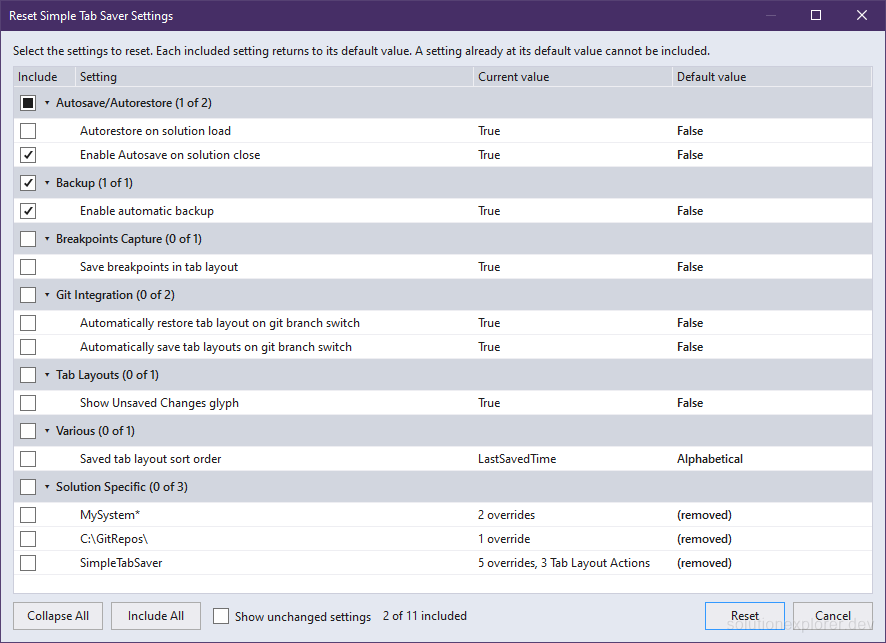
A confirmed import or reset is applied and saved at once. An export taken beforehand is the way back.
Options
All settings are in Tools > Options > Simple Tab Saver, split across three pages. The General page (also opened by the Options entry in the Management menu) carries the top-level feature switches: the storage location, storing inside the .vs folder, showing hidden tab layouts, automatic backups, Autosave, Autorestore, Git Integration, Drift Detection, Breakpoints, Flatten Tab Layout, and the Unsaved Changes glyph.
Each switch changes the matching Advanced options directly, and a switch covering several options shows a square when they are currently mixed - clicking the square resolves them with one click. The Flatten Tab Layout switch works in reverse: checking it turns off tab groups, floating windows, split views, and duplicated tabs in saved tab layouts together, and unchecking it turns all four back on.

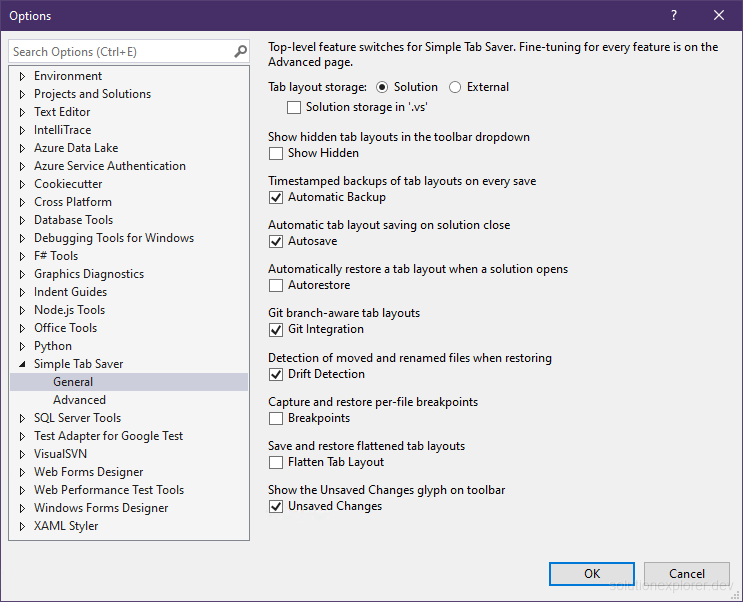
Selected options explained:
- Storing inside the
.vsfolder puts the solution-level storage directory (by default.tablayouts) inside the Visual Studio internal directory created when the solution is opened, so the tab layout storage is automatically kept hidden and gitignored. The risk is that it can get deleted along with the.vsfolder during unrelated cleanup. - Flattening tab layouts means that the tab layout is always saved and restored without any tab groups, floating document windows, split views, and duplicated tabs. An arrangement saved earlier is ignored during restore and stays in the JSON file only until the tab layout is saved again.
- The Unsaved Changes glyph shows an exclamation mark in front of the tab layout name on the toolbar dropdown, but only for the currently active tab layout (most recently saved or restored). It is triggered when tabs are opened, closed, duplicated, and when their pinned status changes. It does not trigger on reordering, creating split views, or moving tabs between tab groups or floating windows.
The Advanced page holds every option of the extension and enables full customization of almost everything. The extension comes with sensible defaults and works without configuration, and each option carries its own description in the settings page.
Solution Specific Options
The Solution Specific page overrides any option for chosen solutions. Each entry names a solution, with * wildcards allowed anywhere in the name (MyCompany.*, *.Tests, My*System), a parent folder, or both, and carries its own overridden options. A parent folder covers every solution inside it, given as a full path (C:\Repos\, a network share like \\server\share\) or as a partial one matching that folder anywhere in the path (\GitRepos\), with * wildcards supported inside folder names and environment variables like %OneDrive% expanded. While a matching solution is open, its overrides take priority over the global options. When several entries match, the entry higher in the list wins per option. Active overrides or Tab Layout Actions put a diamond mark on the Options entry in the Management menu, and the General page names the active entries.
The switches of the General page edit the global values. A switch flipped while an override is active does not change the solution specific values that are applied to the currently open solution.
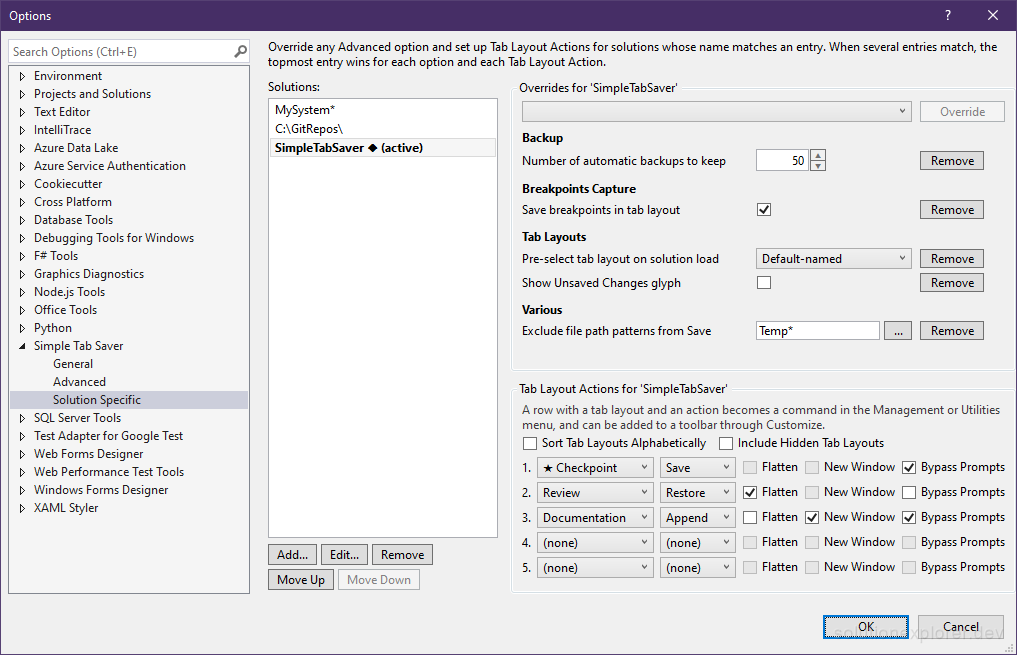
Each Solution Specific entry can also define up to five Tab Layout Actions. A Tab Layout Action pairs a tab layout of the solution with Save, Restore, or Append, plus optional modifiers:
- Flatten makes Restore and Append open everything into one tab group, without floating windows, split views, or duplicated tabs.
- New Window makes Append open every tab into one new floating window.
- Bypass Prompts runs the action without confirmation prompts, even when they are enabled.
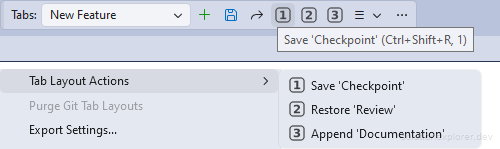
Each configured Tab Layout Action appears in the Management menu or in the Utilities menu and in Extensions > Simple Tab Saver, named after its action and tab layout (example: Restore 'Work Items'). Running it selects its tab layout in the toolbar, runs the action, then reselects the previously selected tab layout (Keep selected tab layout, enabled by default). Show Tab Layout Action commands moves the commands into a Tab Layout Actions sub-menu of Utilities, or removes them from the menus. Tab Layout Action 1 to Tab Layout Action 5 can be added to any toolbar through the Customize dialog as numbered buttons, with a tooltip naming the action and tab layout. Each button shows only while its Tab Layout Action is configured for the open solution. Renaming a tab layout updates its Tab Layout Actions. A Tab Layout Action whose tab layout was deleted is hidden and marked Missing Tab Layout on the options page.
Rating Prompt
After extended use the extension shows a one-time info bar asking to rate it on the Visual Studio Marketplace. Rate first shows a confirmation with the full review address before a default web browser opens it. Closing the prompt, declining it, or exiting Visual Studio while it is still shown is permanent, and it never re-prompts on this machine or this Visual Studio installation. Remind me later hides it for 30 days, after which usage counting starts from scratch.
Privacy
Session logs are written only to the extension's own installation folder, in Logs subfolders, and they are optional. There is no telemetry, and no data is uploaded or collected.
